> For the complete documentation index, see [llms.txt](https://docs.autopilotbrand.com/llms.txt). Markdown versions of documentation pages are available by appending `.md` to page URLs; this page is available as [Markdown](https://docs.autopilotbrand.com/getting-started/autopilot-sign-up-guide/connecting-to-amazon-seller-central-accounts.md).
# Connecting to Amazon Seller Central Accounts
How to connect your Amazon Seller Central account to Autopilot
{% hint style="info" %}
Before starting: Please ensure that you sign-in to the **correct Amazon Seller Central account** and have the access level required for authenticating with third party services
{% endhint %}
### 1. Connect to an Amazon Seller Central account
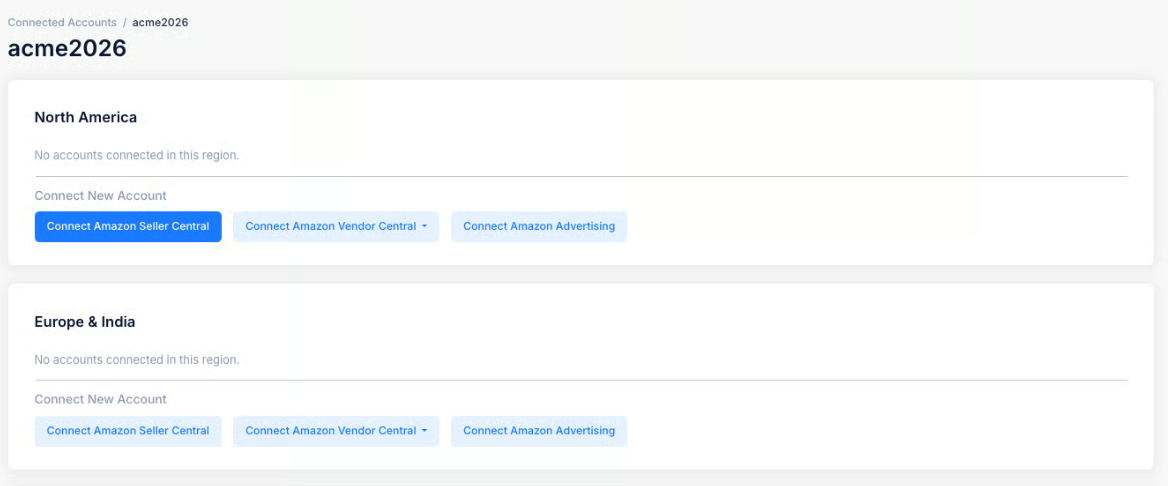
* On the **Settings > Connected Accounts** page, choose the relevant Seller if there are multiple (click View Details on Seller tile)
* In the relevant **region tile** (North America, Europe, Far east)**, click Connect Amazon Seller Central**
### 2. Complete the authorization process in Amazon Seller Central
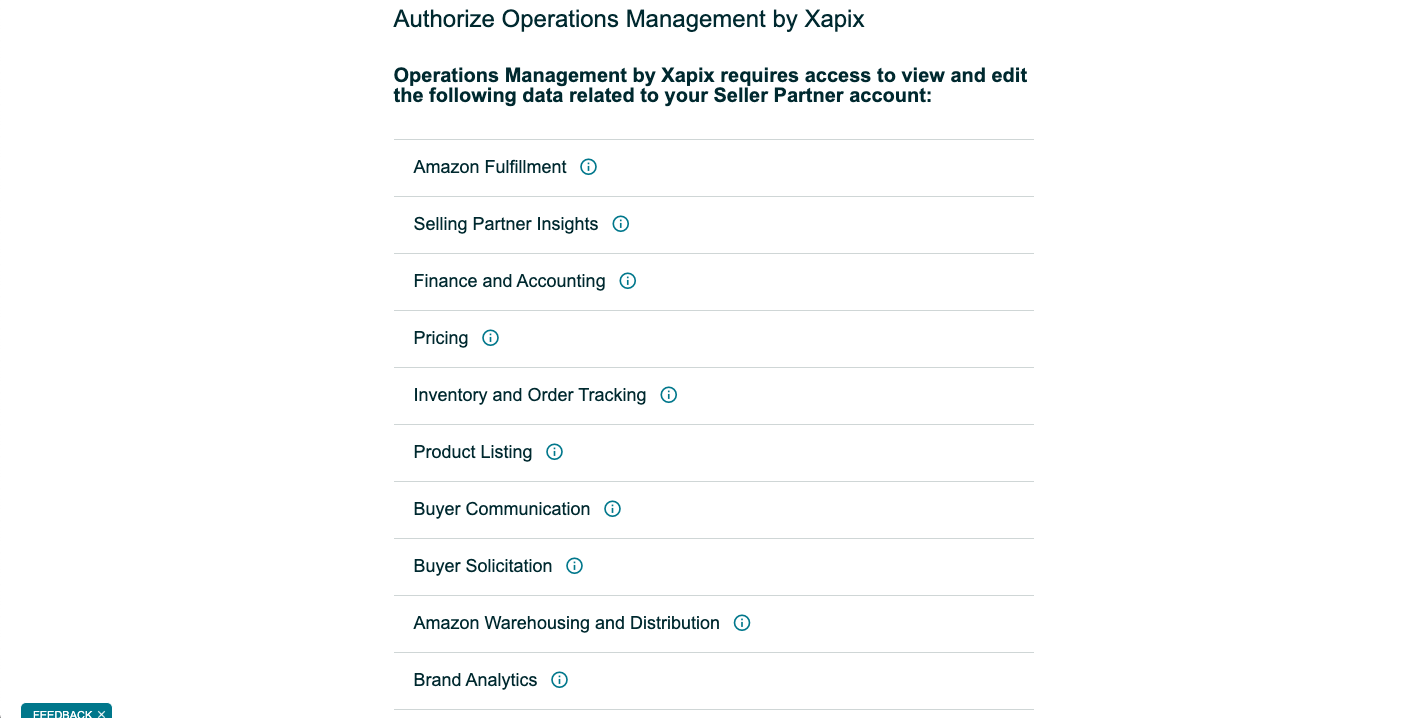
* Once you click on **Connect**, you will be redirected to the Amazon Seller Central login page or directly to your account if you are already signed-in
* The overview of data to be accessed by Autopilot (named Xapix here as this is our legacy name) will be listed
* The consent page will ask you to grant Autopilot access to the data by clicking on **Confirm**
### 3. Confirm your successful account connection
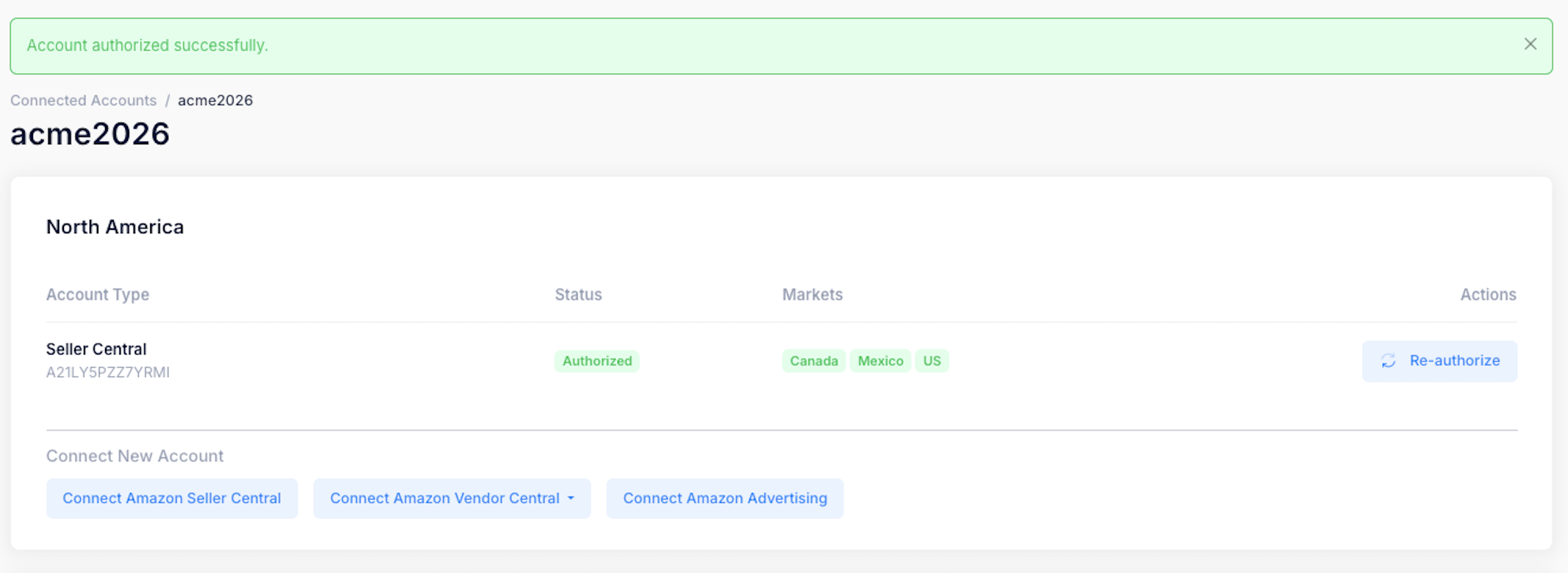
* Upon successful authentication, the relevant Amazon Seller Central account will appear in the Connected Accounts section of the Settings page as shown below
* You can use the Selling Partner ID listed in the card to double-check that you connected the correct account
* The marketplaces (countries) that are part of the Amazon Seller Central connection will be listed too
{% hint style="info" %}
Amazon sellers active in the **Europe & India** and **North America** regions only have to authenticate once per region to enable access to all country marketplaces in the respective regions. As shown in the screenshot above, there is only 1 account connection for all European marketplaces that the seller is active in.
Amazon sellers active in the **Far East**, however, have to connect each country marketplace individually to gain access to them (e.g. complete the separate authentication flows for Japan & Australia, with each connection listed separately on the settings page).
{% endhint %}
For details on [**how to revoke access**](/getting-started/autopilot-sign-up-guide/revoking-account-access/disconnecting-amazon-seller-central-accounts.md), please see [here](/getting-started/autopilot-sign-up-guide/revoking-account-access/disconnecting-amazon-seller-central-accounts.md)