> For the complete documentation index, see [llms.txt](https://docs.autopilotbrand.com/llms.txt). Markdown versions of documentation pages are available by appending `.md` to page URLs; this page is available as [Markdown](https://docs.autopilotbrand.com/getting-started/autopilot-sign-up-guide/connecting-to-amazon-vendor-central-accounts.md).
# Connecting to Amazon Vendor Central Accounts
How to connect your Amazon Vendor Central account to Autopilot
{% hint style="info" %}
Before starting: Please ensure that you sign-in to the **correct Amazon Vendor Central country account** and have the access level required for authenticating with third party services. For Vendor Central, unlike Seller Central, you have to authenticate for each specific country within a region.
{% endhint %}
### 1. Connect to an Amazon Vendor Central account
* On the **Settings > Connected Accounts** page, choose the relevant Seller if there are multiple (click View Details on Seller tile)
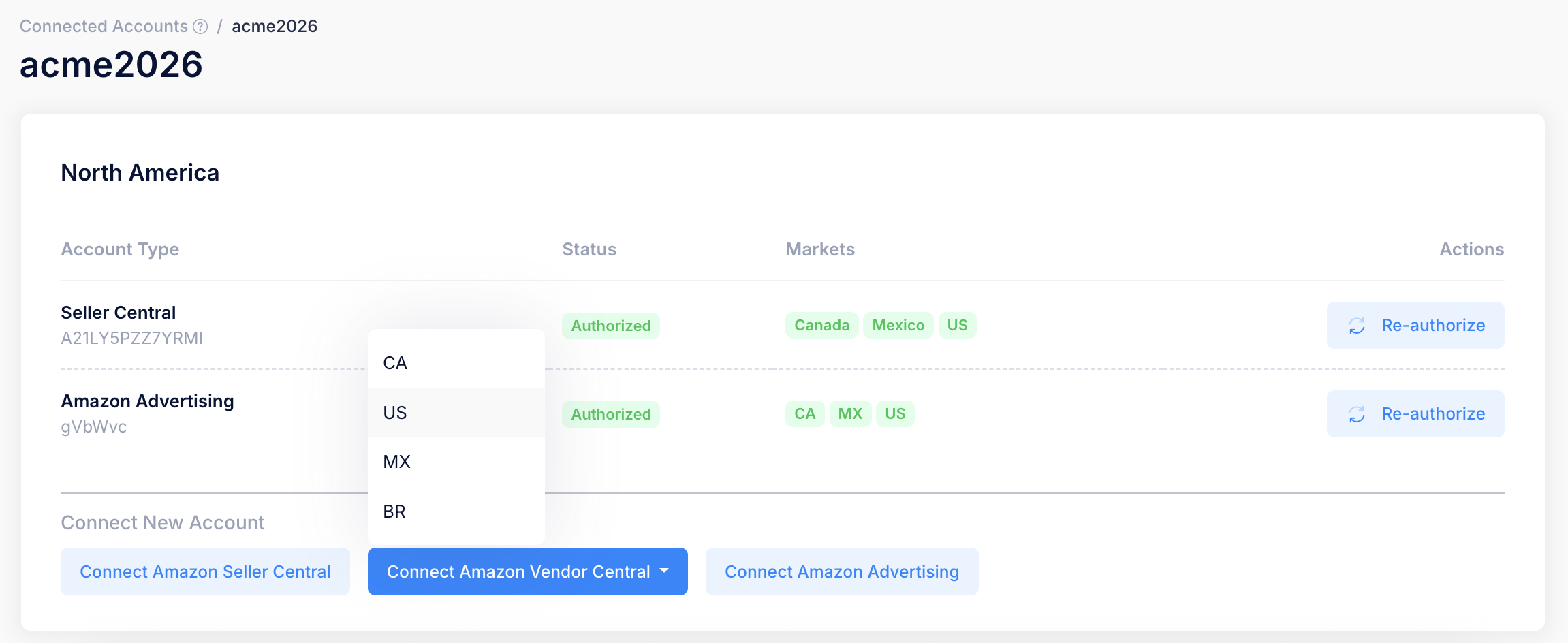
* In the relevant **region tile** (North America, Europe, Far east)**, click Connect Amazon Vendor Central**
* **Select the specific country marketplace** in the dropdown, as shown in screenshot above.
* Now you willl enter the account authentication process via your Amazon Vendor Central account
### 2. Complete the authorization process in Amazon Vendor Central
* Once you click on **Connect**, you will be redirected to the Amazon Vendor Central login page or directly to your account if you are already signed-in
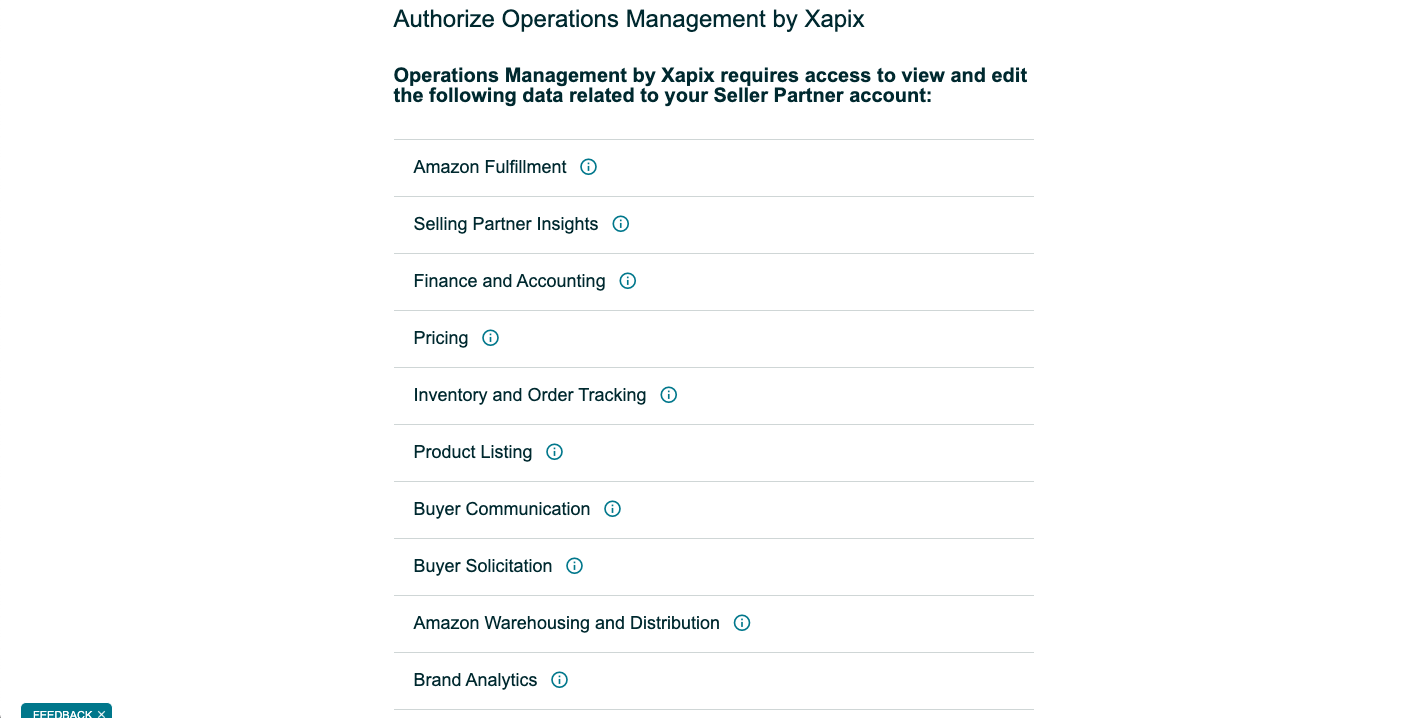
* The overview of data to be accessed by Autopilot (named Xapix here as this is our legacy name) will be listed
* The consent page will ask you to grant Autopilot access to the data by clicking on **Confirm**
### 3. Confirm your successful account connection
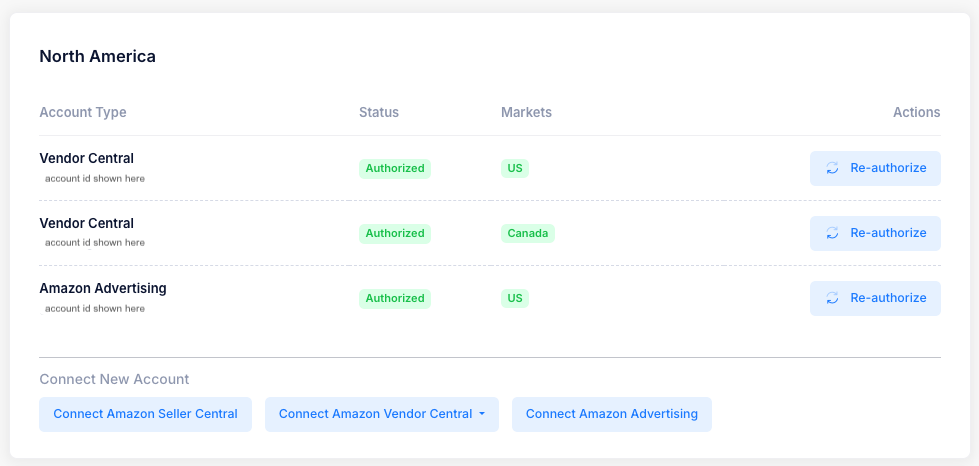
* Upon successful authentication, the Amazon Vendor Central account will appear in the Connected Accounts section of the Seller Settings page as shown above
* You can use the Vendor Central ID listed in the card to double-check that you connected the correct account
* The marketplaces (countries) that are part of the Amazon Vendor Central connection will be listed too
{% hint style="info" %}
For Vendor Central, unlike Seller Central, you have to authenticate for each specific country within a region.
{% endhint %}