
# Autopilot Documentation

Listing optimization, fully automated.

{% hint style="info" %}
**Get started now**. [Sign up](https://www.autopilotbrand.com/early-access-for-autopilot) to Autopilot.
{% endhint %}

Autopilot fully automates the process of optimizing your Amazon listings, driving organic sales with minimal effort.<br>

Our [Getting Started](/getting-started/autopilot-sign-up-guide) section outlines the account setup onboarding process

{% tabs %}
{% tab title="Feedback" %}
© 2026 Autopilot. All rights reserved.

We welcome your feedback about Autopilot documentation. Contact us at <support@autopilotbrand.com>
{% endtab %}
{% endtabs %}


# Sign-Up Guide for Autopilot

{% hint style="info" %}
Interested in using this application? [Sign up](https://my.autopilotbrand.com/portal/users/login) to Autopilot
{% endhint %}

**Autopilot** fully automates the process of optimizing your Amazon listings, driving organic sales with minimal effort.

**Getting Started**

* [Creating Your User Account & Organization](/getting-started/autopilot-sign-up-guide/creating-a-user-account)


# Creating Your User Account & Organization

Details on how to create your first Autopilot user account & organization

{% hint style="info" %}
Looking for the sign-up / login page? You can find it [here](https://my.autopilotbrand.com/portal/users/login)
{% endhint %}

In order to connect your Amazon accounts to Autopilot, you need to start by creating an Autopilot user account:

1. Navigate to the [sign-up page ](https://my.autopilotbrand.com/portal/users/login)and click on **Getting Started**. Or if you were invited to an organization, accept the email invite.
2. Enter the required details and accept the Terms & Conditions
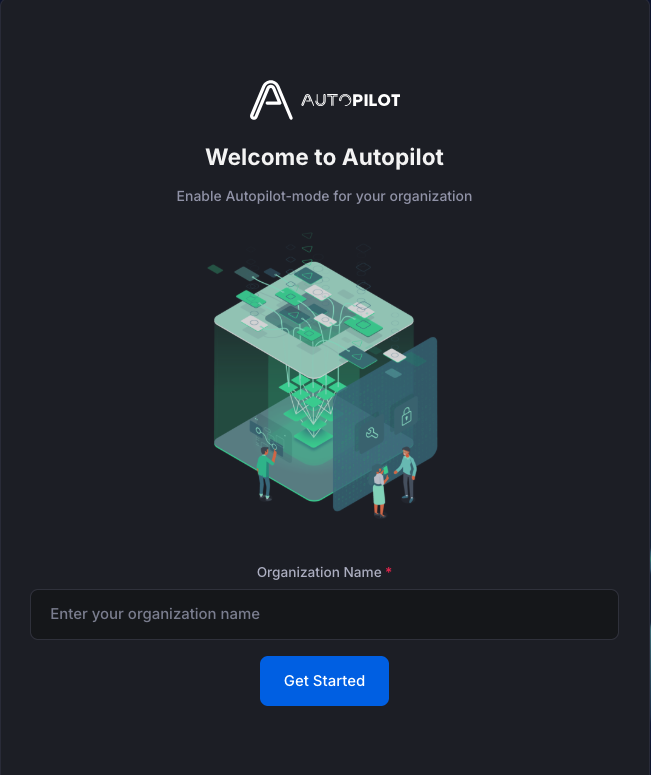
3. If you are not part of an existing Organization already, you must now **enter the name of your Organization.** This is usually your company name (if your organization manages many brands) or seller/brand name (if only 1 brand is managed)

   <div align="center"><figure><img src="/files/gKmsgrMyyNvYK50THDbr" alt="" width="326"><figcaption></figcaption></figure></div>
4. You will now reach the Seller Settings page. New organizations will be inactive and see the following message

<figure><img src="/files/lsbUGGXecQW6iHckdiAO" alt=""><figcaption></figcaption></figure>

5. Whilst the Organization is inactive, you can still start connecting your first Amazon Seller/Vendor and Advertising accounts so that we can start ingesting the required data to get started as quickly as possible.

<figure><img src="/files/RUFWQc1sv4617qtXUPyV" alt=""><figcaption></figcaption></figure>

Click on the relevant links below for more details on each:

* ​[Connecting to Amazon Seller Central Accounts ](https://app.gitbook.com/o/-Llg4538HqXKuID18eLg/s/-Llg4spNbT45Kw3lC5Sv/~/changes/vStj4smoZXilACbl4wOd/getting-started/seller-reporting-by-xapix/seller-reporting-sign-up-guide/amazon-seller-central-account-connection-details)in their active regions (Amazon Regions: Europe & India, North America, Far East)
* [Connecting to Amazon Vendor Central Accounts](/) in their active regions (Amazon Regions: Europe & India, North America, Far East)
* ​[Connecting to Amazon Advertising Accounts](https://app.gitbook.com/o/-Llg4538HqXKuID18eLg/s/-Llg4spNbT45Kw3lC5Sv/~/changes/vStj4smoZXilACbl4wOd/getting-started/seller-reporting-by-xapix/seller-reporting-sign-up-guide/amazon-advertising-account-connection-details) in their active regions (Amazon Regions: Europe & India, North America, Far East)


# Connecting to Amazon Seller Central Accounts

How to connect your Amazon Seller Central account to Autopilot

{% hint style="info" %}
Before starting: Please ensure that you sign-in to the **correct Amazon Seller Central account** and have the access level required for authenticating with third party services
{% endhint %}

### 1. Connect to an Amazon Seller Central account

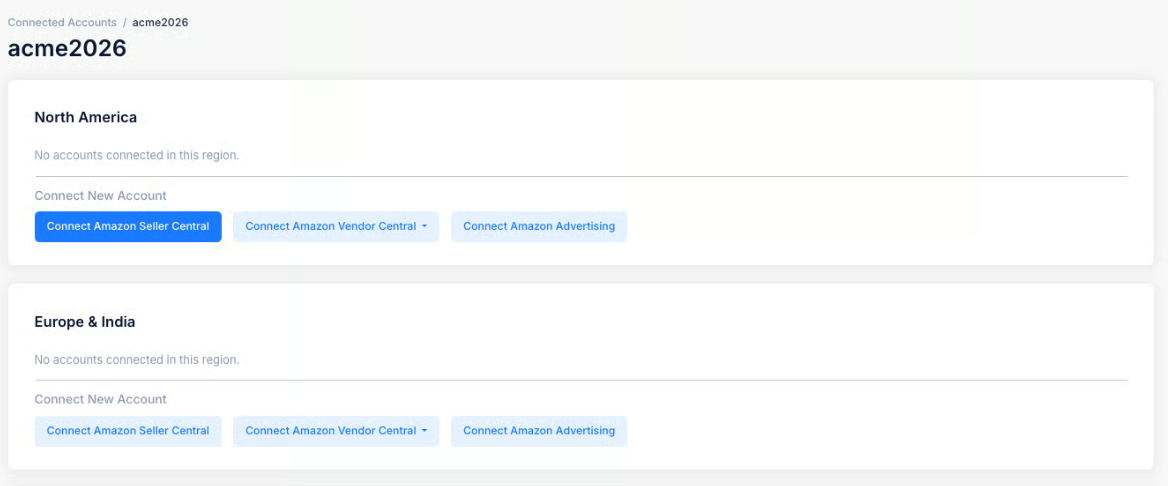
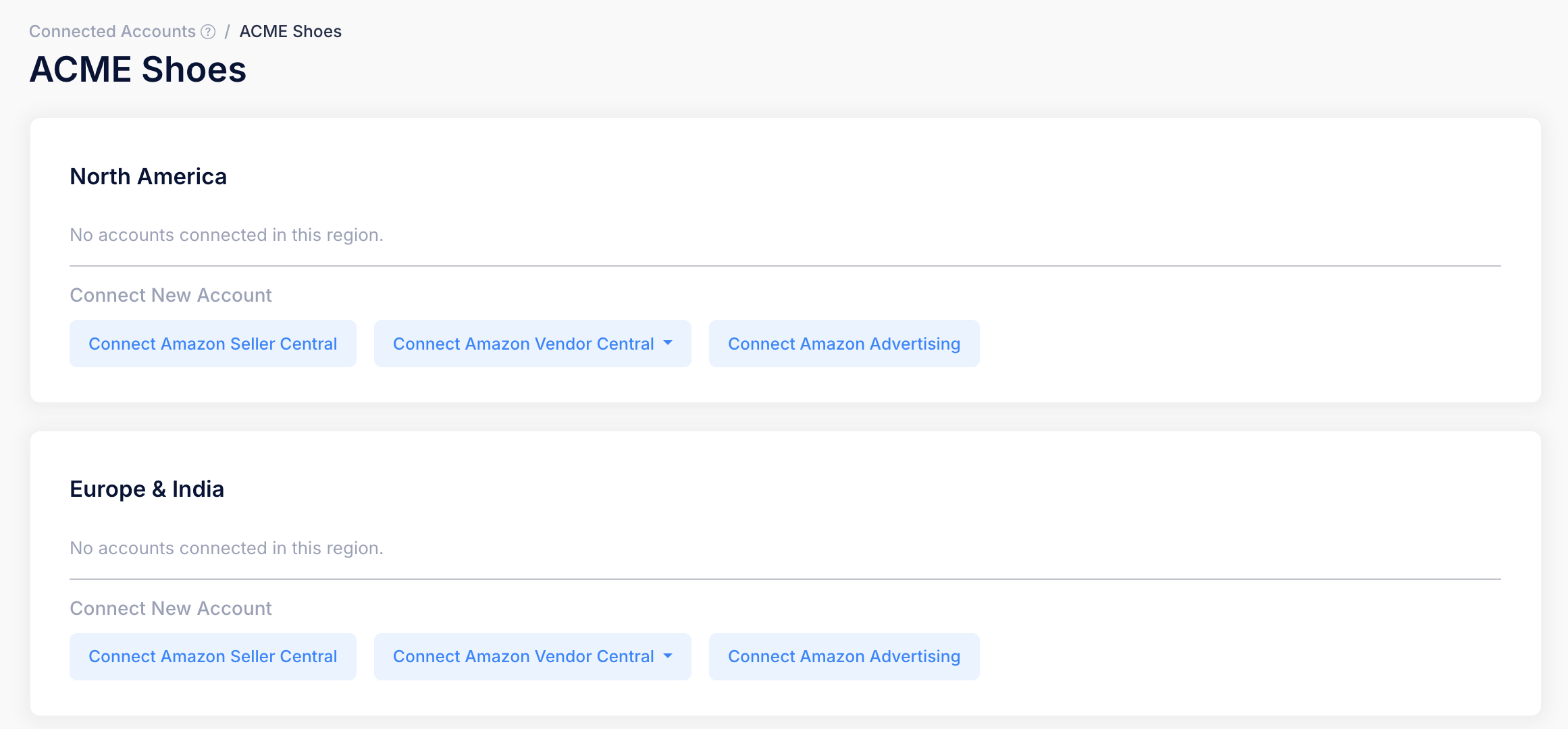
* On the **Settings > Connected Accounts** page, choose the relevant Seller if there are multiple (click View Details on Seller tile)
* In the relevant **region tile** (North America, Europe, Far east)**, click Connect Amazon Seller Central**

<figure><img src="/files/RUFWQc1sv4617qtXUPyV" alt=""><figcaption></figcaption></figure>

### 2. Complete the authorization process in Amazon Seller Central

<figure><img src="/files/xN8I66w8l1NWUgI5BAc2" alt=""><figcaption></figcaption></figure>

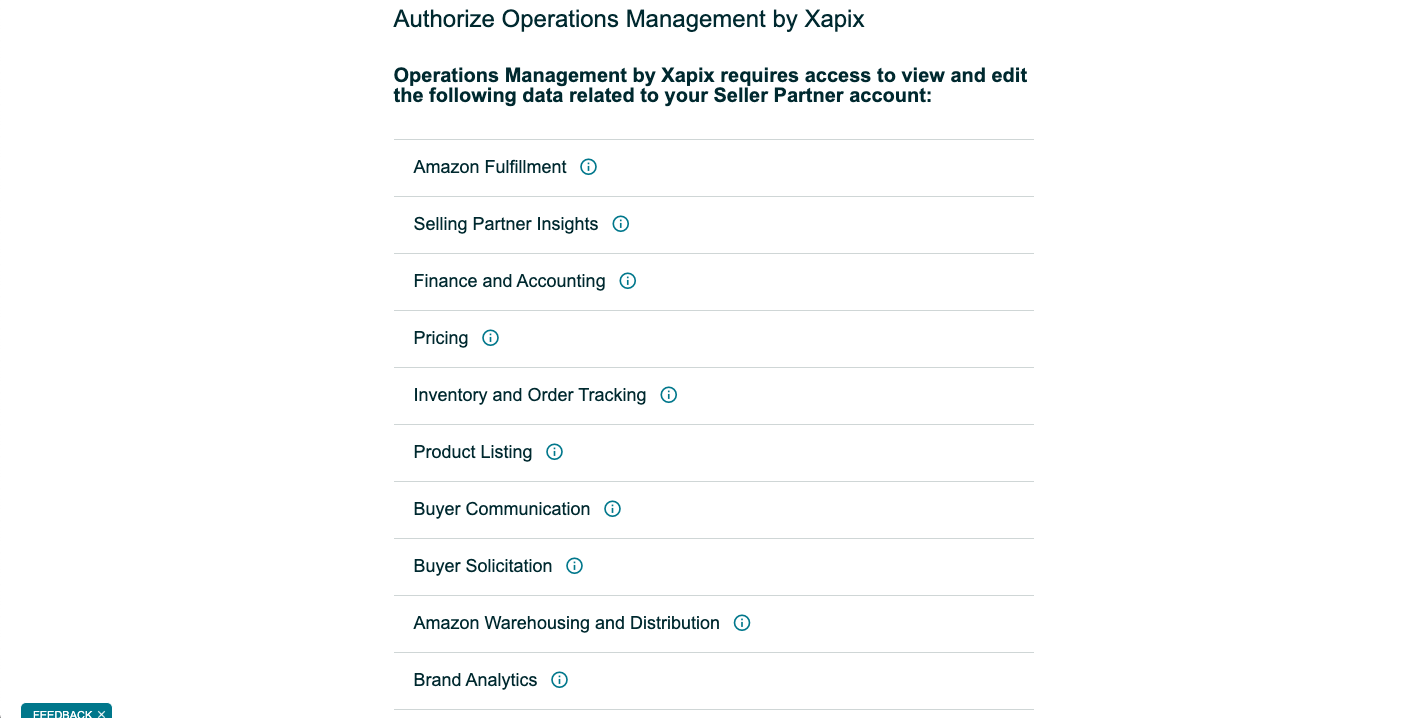
* Once you click on **Connect**, you will be redirected to the Amazon Seller Central login page or directly to your account if you are already signed-in
* The overview of data to be accessed by Autopilot (named Xapix here as this is our legacy name) will be listed
* The consent page will ask you to grant Autopilot access to the data by clicking on **Confirm**

### 3. Confirm your successful account connection

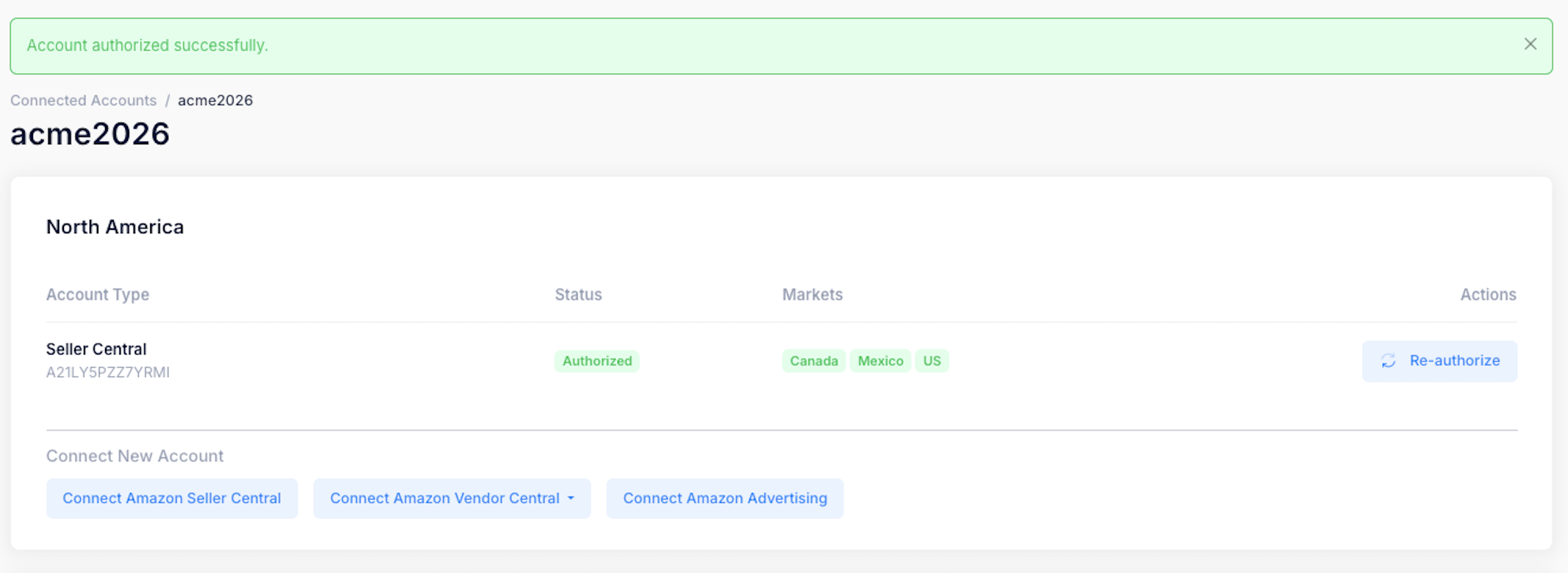
<figure><img src="/files/PG30PKO6xscT92zg3BGI" alt=""><figcaption></figcaption></figure>

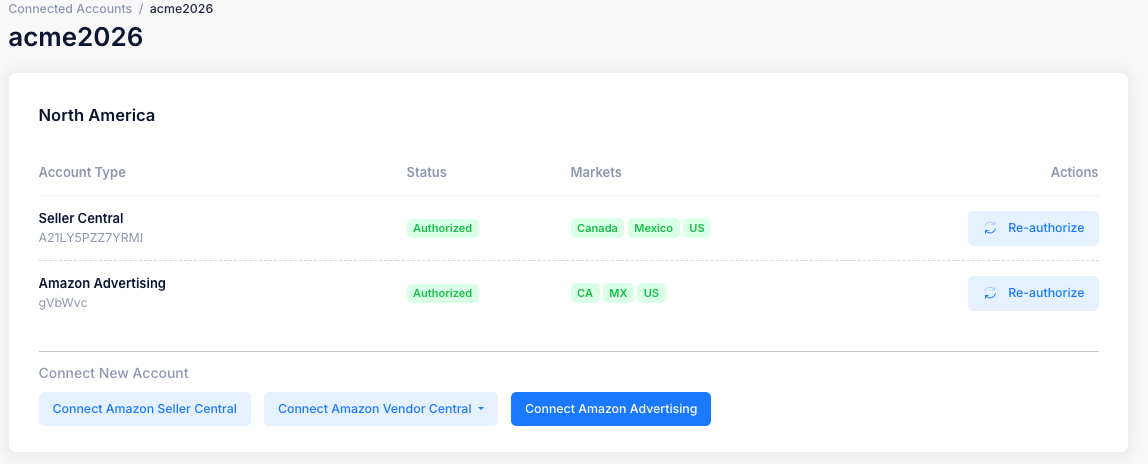
* Upon successful authentication, the relevant Amazon Seller Central account will appear in the Connected Accounts section of the Settings page as shown below
* You can use the Selling Partner ID listed in the card to double-check that you connected the correct account
* The marketplaces (countries) that are part of the Amazon Seller Central connection will be listed too

{% hint style="info" %}
Amazon sellers active in the **Europe & India** and **North America** regions only have to authenticate once per region to enable access to all country marketplaces in the respective regions. As shown in the screenshot above, there is only 1 account connection for all European marketplaces that the seller is active in.

Amazon sellers active in the **Far East**, however, have to connect each country marketplace individually to gain access to them (e.g. complete the separate authentication flows for Japan & Australia, with each connection listed separately on the settings page).
{% endhint %}

For details on [**how to revoke access**](/getting-started/autopilot-sign-up-guide/revoking-account-access/disconnecting-amazon-seller-central-accounts), please see [here](/getting-started/autopilot-sign-up-guide/revoking-account-access/disconnecting-amazon-seller-central-accounts)


# Connecting to Amazon Vendor Central Accounts

How to connect your Amazon Vendor Central account to Autopilot

{% hint style="info" %}
Before starting: Please ensure that you sign-in to the **correct Amazon Vendor Central country account** and have the access level required for authenticating with third party services. For Vendor Central, unlike Seller Central, you have to authenticate for each specific country within a region.
{% endhint %}

### 1. Connect to an Amazon Vendor Central account

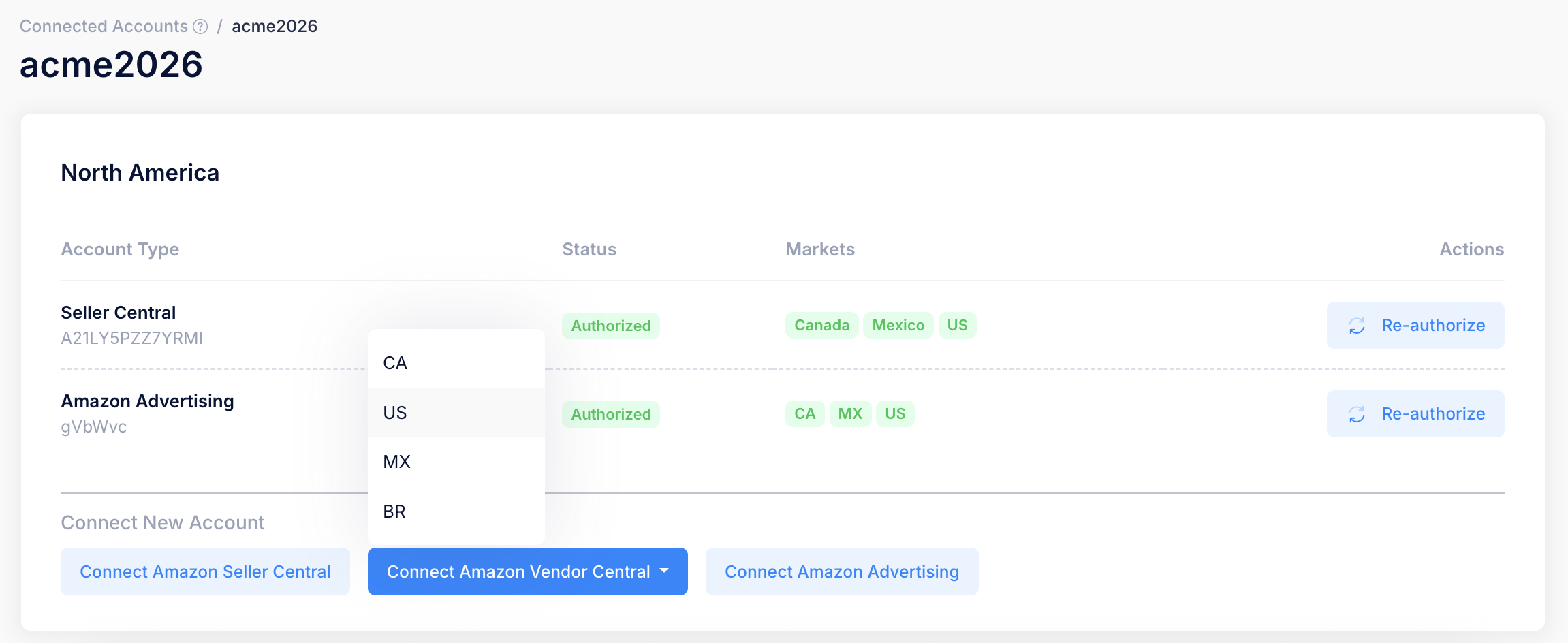
<figure><img src="/files/agR0yk8VpyAUYanXQyA4" alt=""><figcaption></figcaption></figure>

* On the **Settings > Connected Accounts** page, choose the relevant Seller if there are multiple (click View Details on Seller tile)
* In the relevant **region tile** (North America, Europe, Far east)**, click Connect Amazon Vendor Central**
* **Select the specific country marketplace** in the dropdown, as shown in screenshot above.
* Now you willl enter the account authentication process via your Amazon Vendor Central account

### 2. Complete the authorization process in Amazon Vendor Central

<figure><img src="/files/xN8I66w8l1NWUgI5BAc2" alt=""><figcaption></figcaption></figure>

* Once you click on **Connect**, you will be redirected to the Amazon Vendor Central login page or directly to your account if you are already signed-in
* The overview of data to be accessed by Autopilot (named Xapix here as this is our legacy name) will be listed
* The consent page will ask you to grant Autopilot access to the data by clicking on **Confirm**

### 3. Confirm your successful account connection

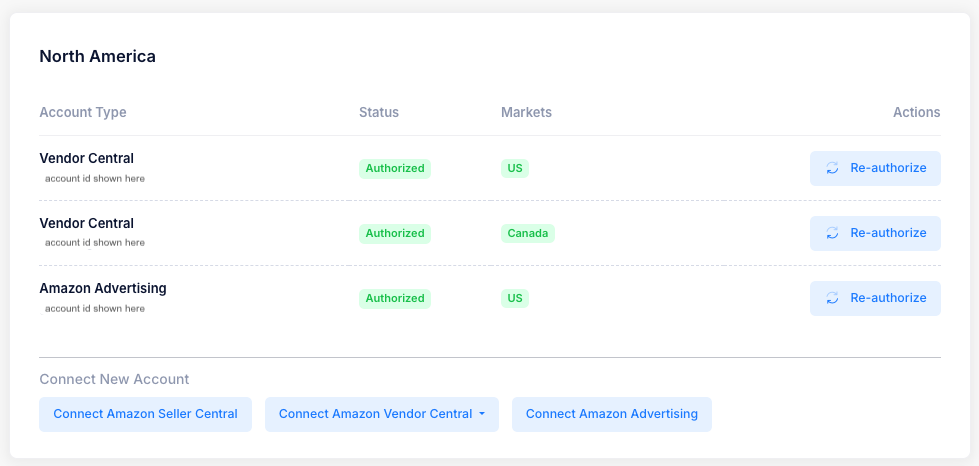
<figure><img src="/files/Ex7syuclyNDy1tVwj1hz" alt=""><figcaption></figcaption></figure>

* Upon successful authentication, the Amazon Vendor Central account will appear in the Connected Accounts section of the Seller Settings page as shown above
* You can use the Vendor Central ID listed in the card to double-check that you connected the correct account
* The marketplaces (countries) that are part of the Amazon Vendor Central connection will be listed too

{% hint style="info" %}
For Vendor Central, unlike Seller Central, you have to authenticate for each specific country within a region.
{% endhint %}


# Connecting to Amazon Advertising Accounts

Details on connecting and disconnecting your Amazon Advertising accounts

{% hint style="info" %}
Before starting, please ensure you that you sign-in to the correct Amazon Advertising account and have the access level required for authenticating with third party services (ideally Admin Access)
{% endhint %}

### 1. Connect to an Amazon Advertising Account from Autopilot

<figure><img src="/files/5D1dEuJLGmI5kDwnXTkq" alt=""><figcaption></figcaption></figure>

* On the **Settings > Connected Accounts** page, choose the relevant Seller if there are multiple (click View Details on Seller tile)
* In the relevant **region tile** (North America, Europe, Far east)**, click Connect Amazon Advertising**

### 2. Complete the authentication process in the Amazon Advertising account

* Once you click on **Connect Amazon Advertising** you will be redirected to the Amazon Advertising Account login page or directly to the account if you are already signed-in
* The consent page will ask you to grant Xapix (the legacy name for Autopilot) access to the data outlined in the page description by clicking on **Allow**
* You will now be redirected back to the Autopilot settings page

![](/files/BuXeyToXFGS3lZy7klYK)

### 3.Confirm your successful account connection

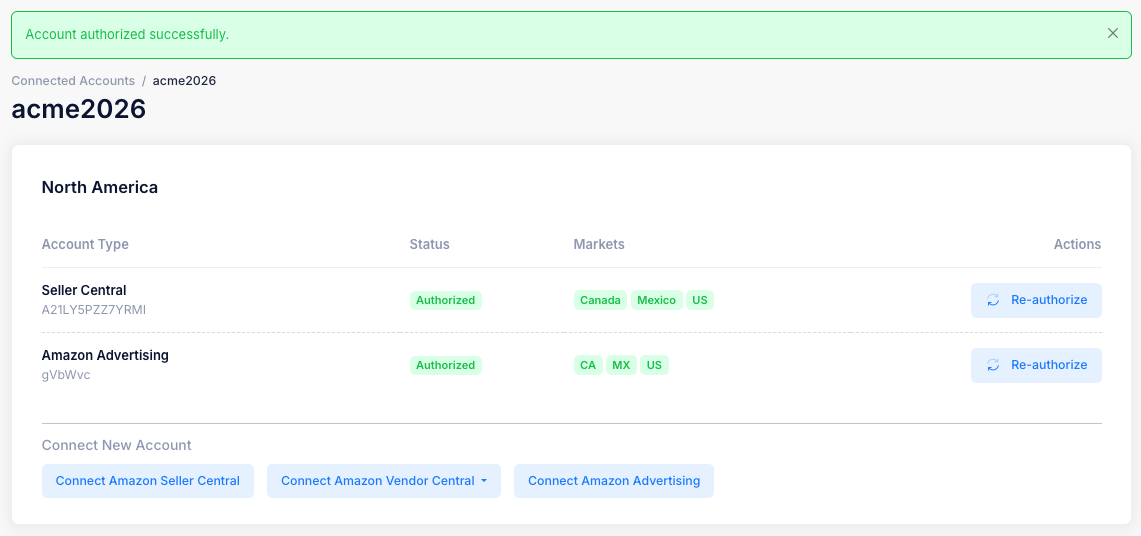
* Upon successful authentication, the relevant Amazon Advertising Account will appear in the Data Services section of the Settings page as shown below
* Autopilot can now access Amazon Advertising API for the listed Advertising account in order to generate brand performance insights

<figure><img src="/files/u2yhEpO8R6hItSMMAdB7" alt=""><figcaption></figcaption></figure>

For details on how to disconnect your Amazon Advertising account from Autopilot, please see the following[ page](/getting-started/autopilot-sign-up-guide/revoking-account-access/disconnecting-amazon-advertising-accounts)


# Revoking Account Access

How to revoke Autopilot access to Amazon and Shopify Accounts

{% hint style="info" %}
If you disconnect your account, Autopilot can no longer access any data and can therefore no longer provide any insights
{% endhint %}

If you still wish to disconnect an existing Amazon Seller Central, Amazon Advertising or Shopify account from Autopilot, then the following pages outline how to revoke access to each account type:

[Disconnecting Amazon Advertising Accounts](/getting-started/autopilot-sign-up-guide/revoking-account-access/disconnecting-amazon-advertising-accounts)

[Disconnecting Amazon Seller Central Accounts](/getting-started/autopilot-sign-up-guide/revoking-account-access/disconnecting-amazon-seller-central-accounts)

[Broken mention](broken://pages/wfGh6LhGaL3x4O0l2vTE)


# Disconnecting Amazon Seller Central Accounts

How to disconnect your Amazon Seller Central account from Autopilot

{% hint style="info" %}
If you disconnect your account, Autopilot can no longer access any data and can therefore no longer provide any insights
{% endhint %}

### Revoking Access

**Seller Central Account: Amazon Selling Partner API**

* You will see the **Seller Reporting by Xapix and/or Operations Management by Xapix** apps listed in Seller Central under **Apps & Services > Manage Your Apps:** [**https://sellercentral.amazon.com/apps/manage/**](https://sellercentral.amazon.com/apps/manage/)
* You can revoke access at any time by clicking on the **Disable** action for the **Seller Reporting by Xapix** application

![](/files/-Mg6I-L9NRw8LcOkDllq)


# Disconnecting Amazon Advertising Accounts

{% hint style="info" %}
If you disconnect your account, Xapix can no longer access any data and can therefore no longer provide any insights
{% endhint %}

### **Revoking Amazon Advertising API Access**

* You can revoke Amazon Advertising API authorizations by visiting the section in their Amazon account titled **Manage Login with Amazon** or via this link: <https://www.amazon.com/ap/adam>
* Note: to avoid mix-ups, we suggest opening the link in an incognito/privacy tab of your browser and signing in with relevant account credentials
* **Seller Reporting by Xapix** will appear under the listed **Apps and Websites,** with the Remove button enabling users to revoke the authentication

![](/files/bNRQsuuKLxX96KYg41Hl)


# Connecting Multiple Amazon Seller Accounts

For adding additional Amazon Seller accounts to your Organization

{% hint style="info" %}
The [Sign-Up Guide ](/getting-started/autopilot-sign-up-guide)takes you through creating your first user account and organization. This is is sufficient if you manage 1 Amazon seller (even with multiple regions). Your first Autopilot Seller entity will be created automatically in this process. If you manage multiple Amazon sellers with their own Seller/Vendor Central and Ads Account, you can follow the steps below to create additional sellers.
{% endhint %}

<figure><img src="/files/vju4IDApxLAYbu83iOqT" alt=""><figcaption></figcaption></figure>

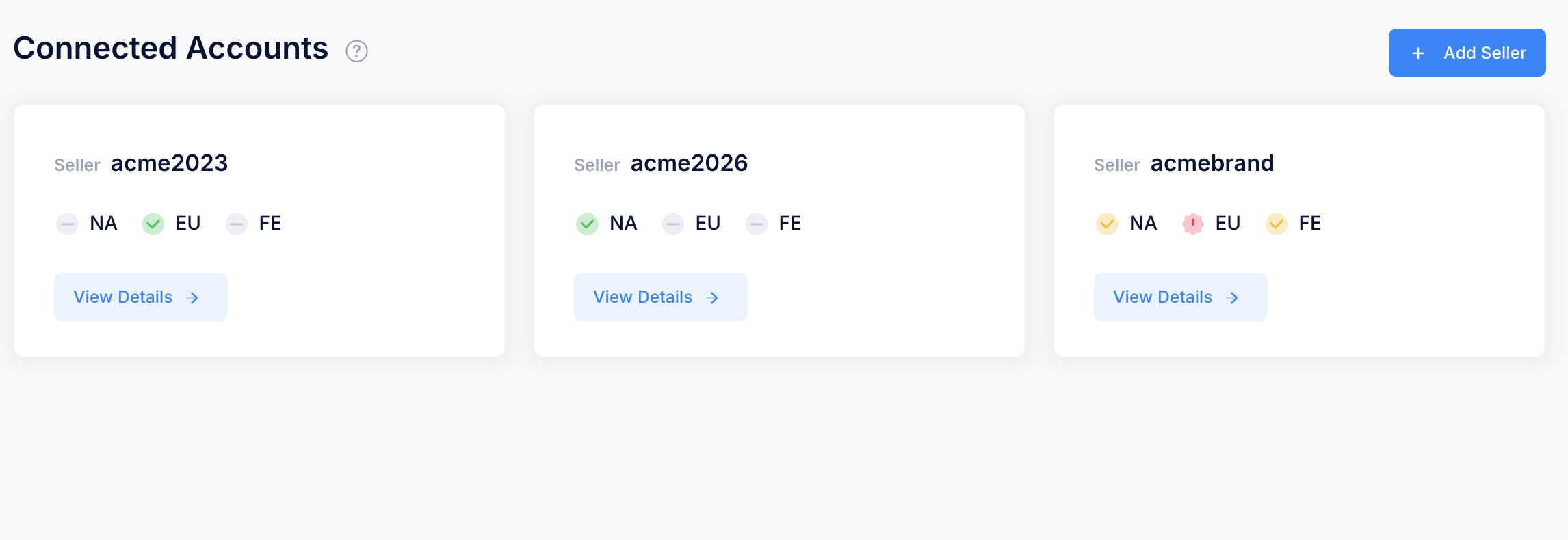
1. **Settings > Connected Accounts** page will display any existing Sellers and the **Add Seller** button as shown above
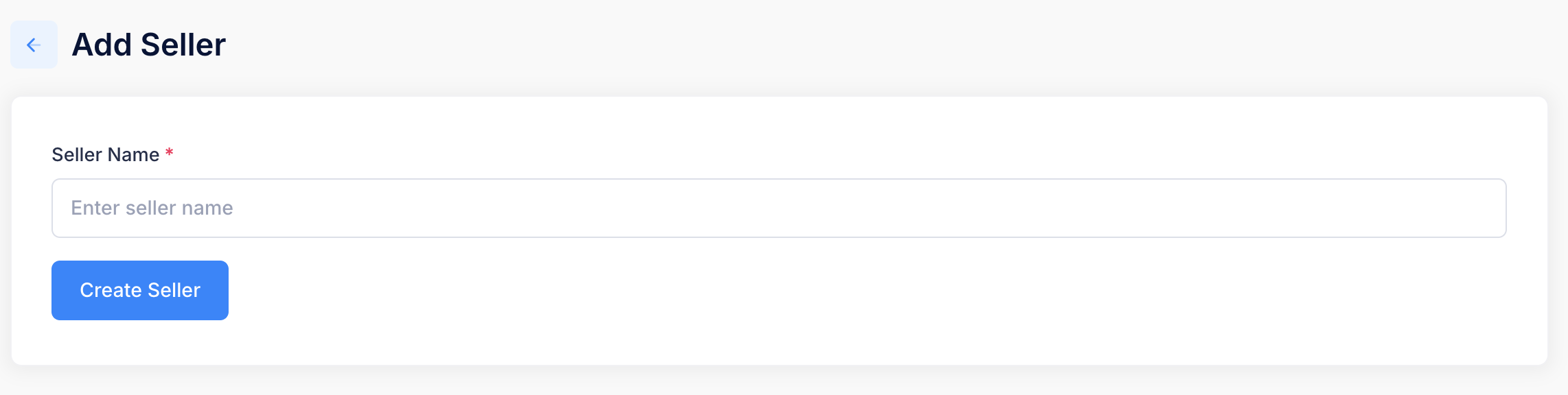
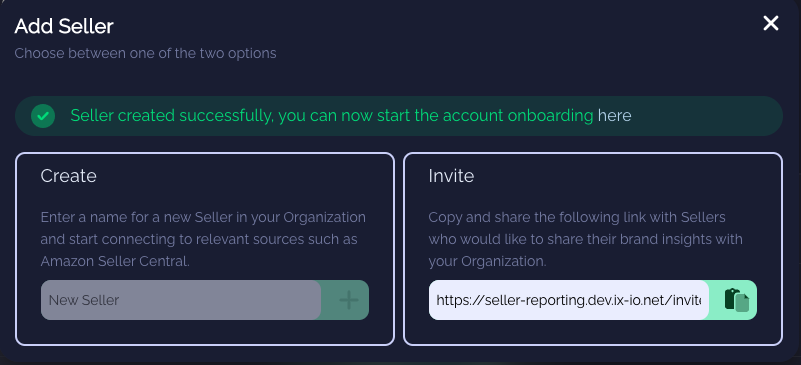
2. Click **Add Seller** and enter the Seller name and click Create Seller

   <figure><img src="/files/IHZ7hBstSwRK49Bc1cWd" alt=""><figcaption></figcaption></figure>
3. You will now see the new Seller page with options to connect you Amazon accounts, starting with[ Amazon Seller Central](/getting-started/autopilot-sign-up-guide/connecting-to-amazon-seller-central-accounts)

<figure><img src="/files/q5U0CdjJs7Lq2SJausbn" alt=""><figcaption></figcaption></figure>


# Manager Accounts

Step-by-step guide for third parties such as aggregators, brand houses and agencies accessing multiple seller accounts within their Autopilot organization

1\. Autopilot will create a dedicated organization for you and invite you to create your organization's first [user account](/getting-started/autopilot-sign-up-guide/creating-a-user-account)

{% hint style="info" %}
Interested in a manager account organization? Please contact us at <support@autopilotbrand.com>
{% endhint %}

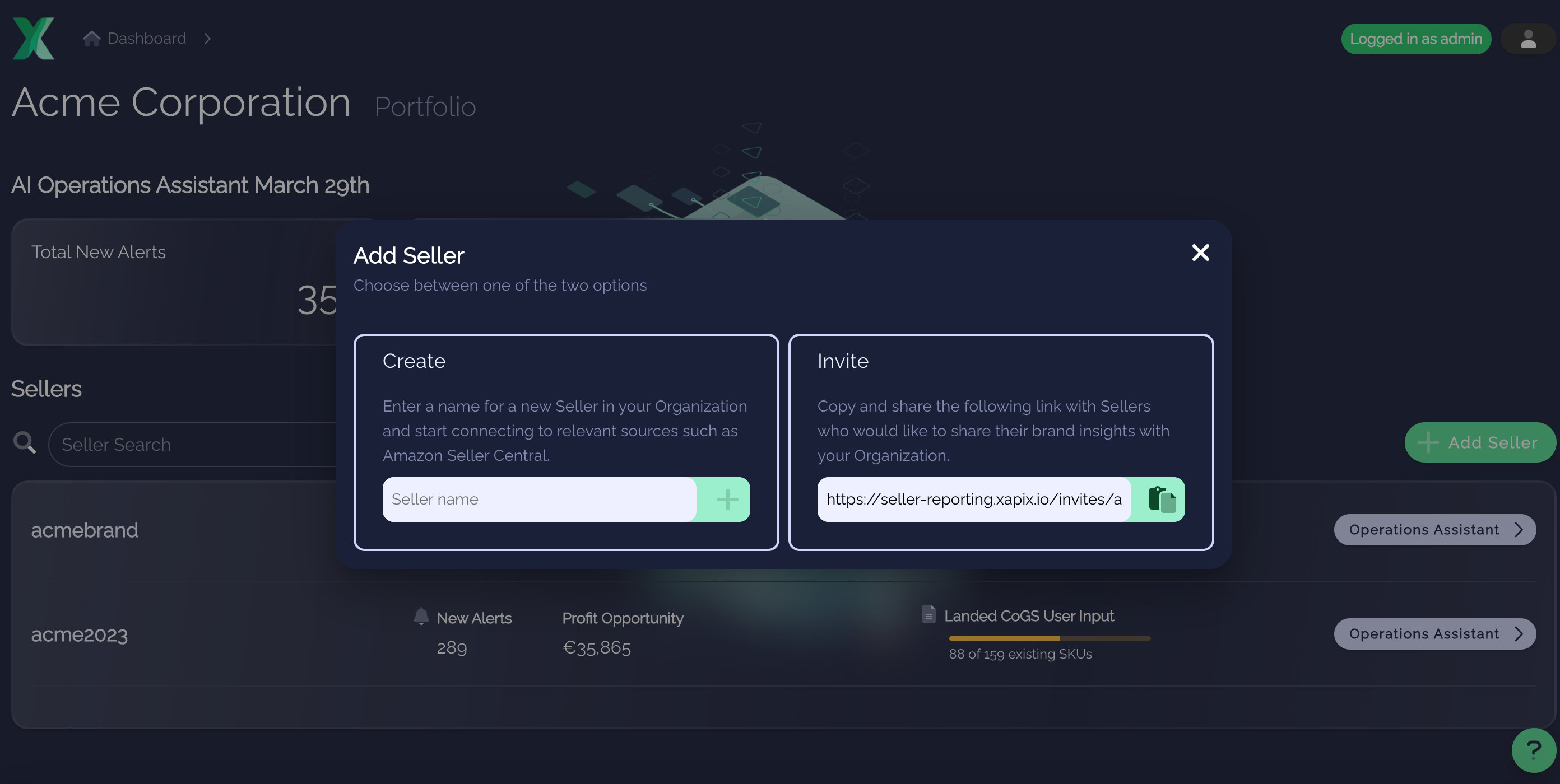
2\. On the Organization dashboard page, click **Add Seller** and choose between the following options:

* [**Create** a Seller](/getting-started/create-multiple-sellers): for sellers your organization owns and has full access to - simply enter the seller name and move on to connecting to the relevant sources such as Amazon Seller Central
* [**Invite** a Seller](/getting-started/seller-reporting-sign-up-guide/invite-a-seller-for-evaluation): for sellers who want to share data with you - simply copy the link to clipboard and share it with them

<figure><img src="/files/Rkjom35LgOdTLKi1Znol" alt=""><figcaption></figcaption></figure>


# Invite a Seller for Evaluation

For inviting sellers to share insights with your organization

<figure><img src="/files/Rkjom35LgOdTLKi1Znol" alt=""><figcaption></figcaption></figure>

1. On the Organization dashboard page, click **Add Seller**
   * Under **Invite**, click on the clipboard icon to copy the link
2. Share the invite link from your dashboard page with the sellers you wish to invite, please note:
   * The same registration link can be shared with any number of different sellers
   * The invited seller should have relevant access levels (ideally admin access) to the accounts you want to receive insights for

<figure><img src="/files/4917BkE2V6DPwA4Nu9mV" alt=""><figcaption></figcaption></figure>

3. Upon receiving the link, the Seller is asked to share brand insights with your company via Autopilot by creating an Autopilot user account
   * The account registration page confirms that your company (**Acme Corporation** in the example below) has invited the seller
   * In order to proceed, the seller is asked to create an Autopilot user account by confirming their email address, company name, password and accepting the terms & conditions
   * For more details on the seller account creation process for sellers, see [here](/getting-started/autopilot-sign-up-guide/creating-a-user-account)

![Seller Sign-up Page Accessed via Invite Link](/files/6vilGhbQ4q5oUiPRD0ML)

4. The Seller is then guided through the required [account authentication and COGS upload process](/getting-started/autopilot-sign-up-guide/connecting-to-amazon-seller-central-accounts)

![Seller Settings Page & Onboarding Guide](/files/8bQ3K8xULAejFMcJq69A)

The Settings page guides sellers through the required steps. Click on the relevant links below for more details on each:

* Confirmation of their Autopilot account
* [Connecting to Amazon Seller Central Accounts ](/getting-started/autopilot-sign-up-guide/connecting-to-amazon-seller-central-accounts)in their active regions (Amazon Regions: Europe & India, North America, Far East)
* [Connecting to Amazon Advertising Accounts](/getting-started/autopilot-sign-up-guide/connecting-to-amazon-advertising-accounts) in their active regions (Amazon Regions: Europe & India, North America, Far East)
* [Uploading Cost of Goods Sold](broken://pages/07W8uM0C5LQqw0AwxRds) (COGS) data

#### 5. Successful seller connections are confirmed on the Seller Settings page

* On the Settings page > Data Services section, you can confirm which accounts the seller has successfully connected to Autopilot as shown in the screenshot below
* Furthermore, you can use the CoGS upload component to upload CoGS data in the same way that the seller can, as outlined [here](broken://pages/07W8uM0C5LQqw0AwxRds)


# Organization & User Settings

Invite users, manage notifications and your paid subscription plan

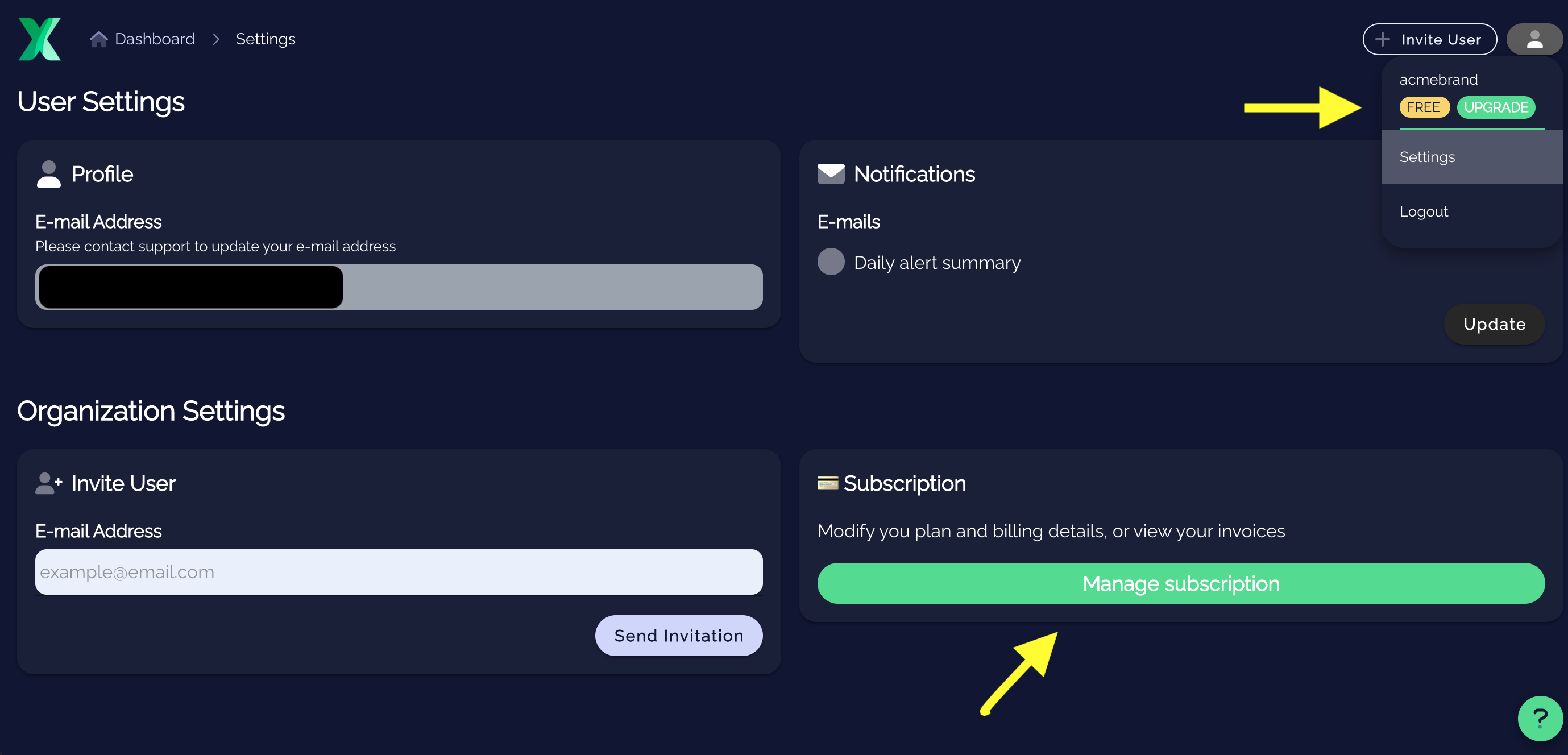
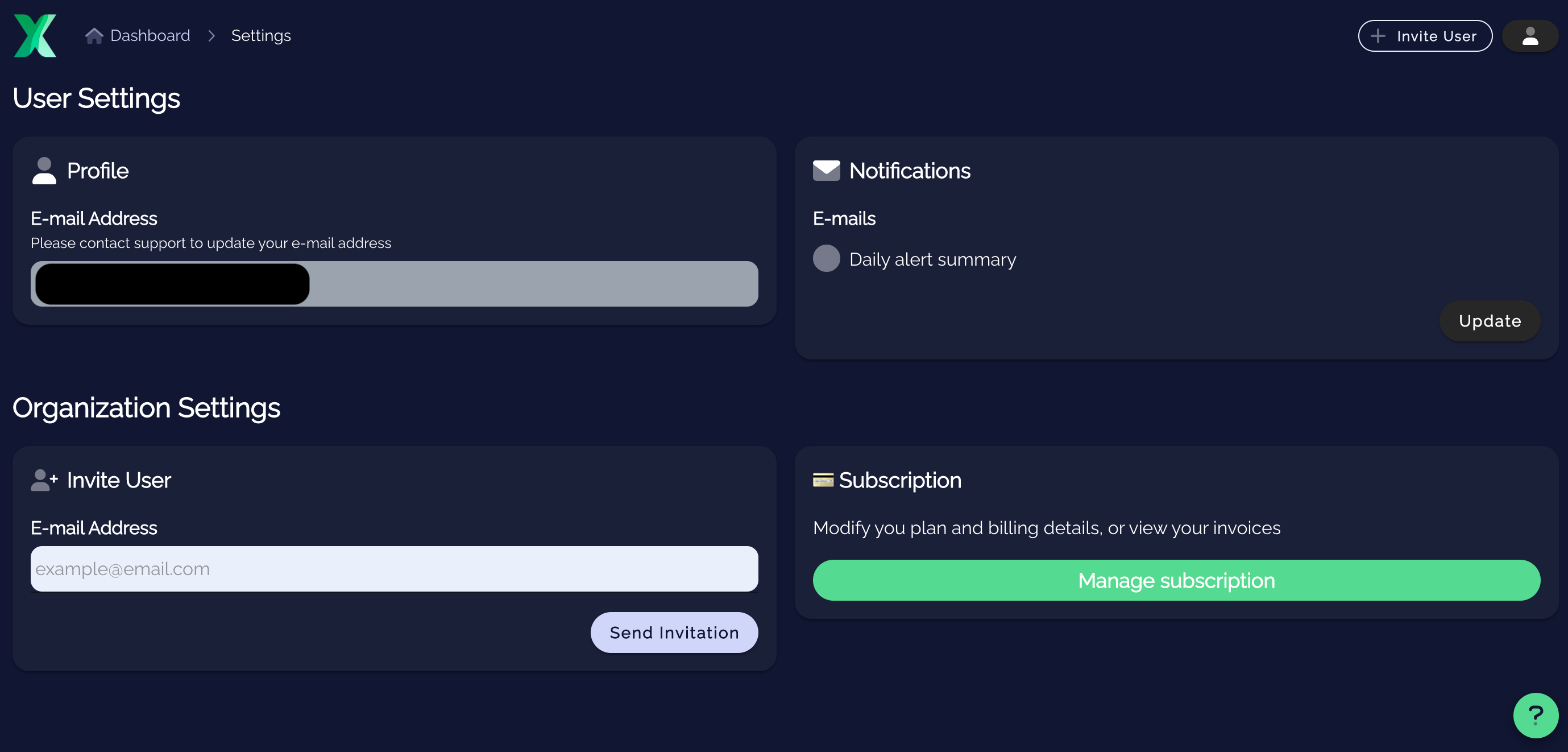
Organization and User Settings can be accessed via the user icon that is always visibile in the top right-hand corner.

<figure><img src="/files/77S6nASwnufDm0V8uOTm" alt=""><figcaption><p>User &#x26; Organization Settings Page</p></figcaption></figure>

Various options are available on this page, details of which can be read below:

{% content-ref url="/pages/ADYzW6tNDZwtQkGV6qUT" %}
[Invite Users](/getting-started/seller-reporting-sign-up-guide/organization-and-user-settings/invite-users)
{% endcontent-ref %}

{% content-ref url="/pages/wxvfVlw1FR6FRMsvH6jf" %}
[Manage email Notifications](/getting-started/seller-reporting-sign-up-guide/organization-and-user-settings/manage-email-notifications)
{% endcontent-ref %}

{% content-ref url="/pages/rhTm9vFbEPHYck2CiinQ" %}
[Subscribe to a Paid Plan](/getting-started/seller-reporting-sign-up-guide/organization-and-user-settings/subscribe-to-a-paid-plan)
{% endcontent-ref %}


# Invite Users

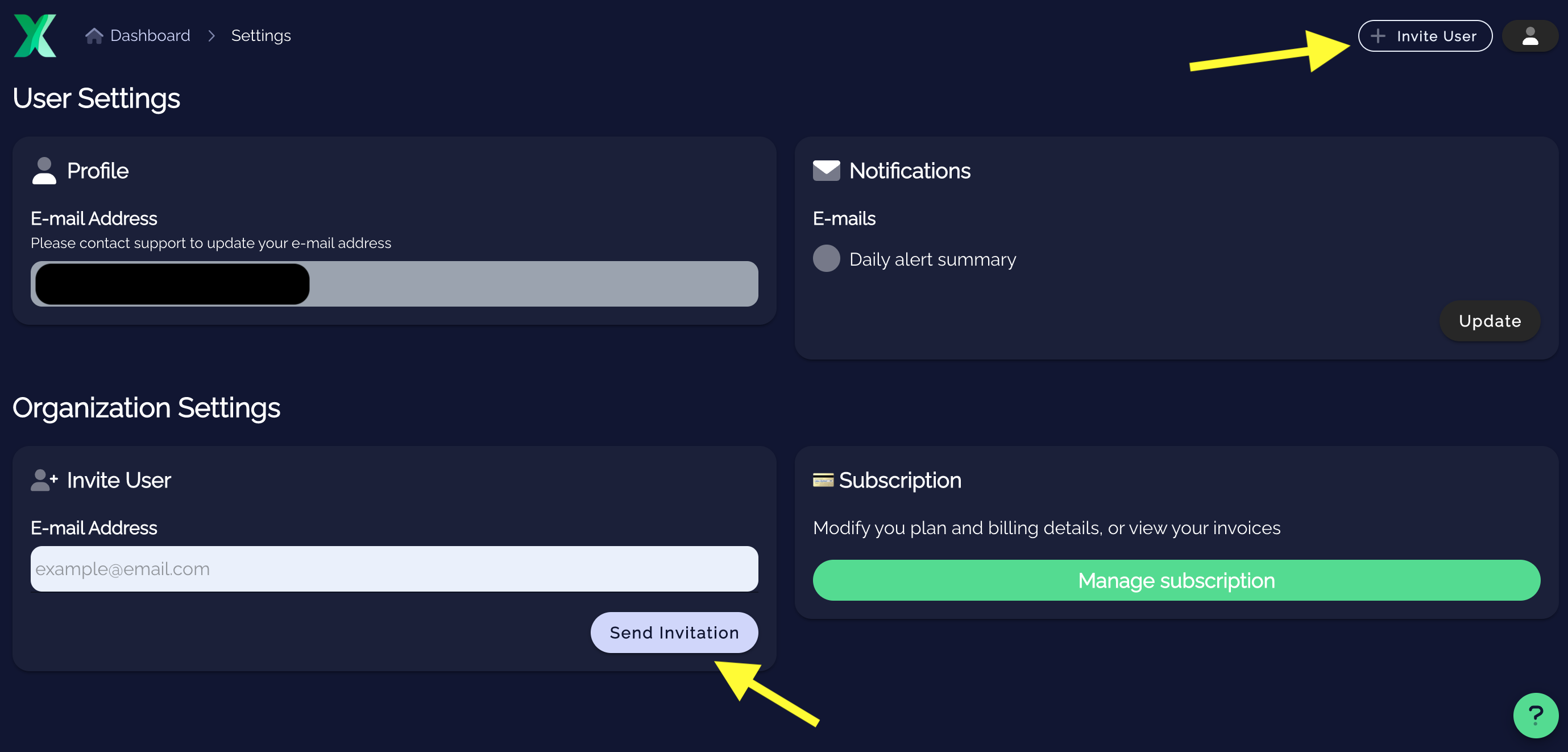
1. You can invite other users to your organization via the **+ Invite User** button, which is always visible in the top right hand corner of the application. Alternatively, you can use the **Send Invitation** button on the Organization Settings page.

<figure><img src="/files/AIhshnS1xWkZs8us7k2z" alt=""><figcaption></figcaption></figure>

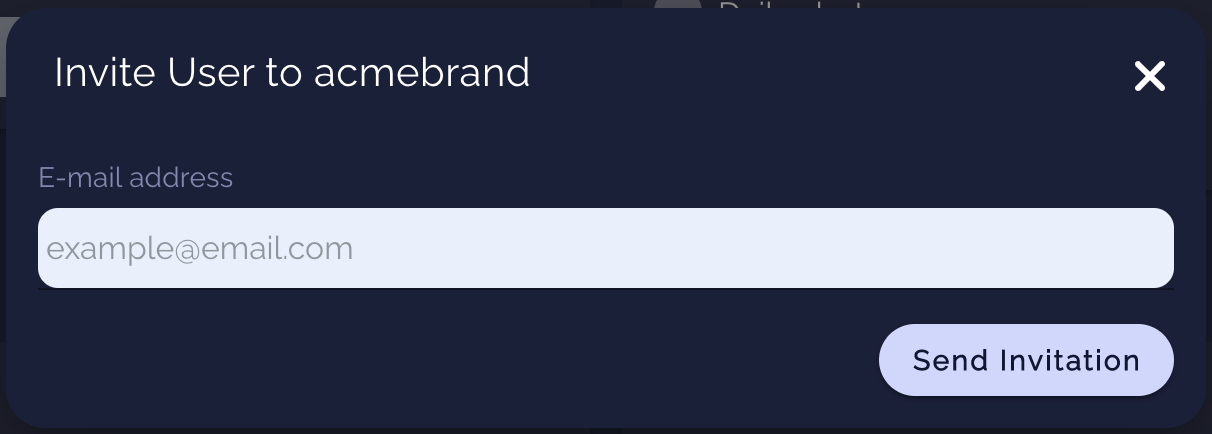
2. Simply enter the email address of the user you would like to invite and click **Send Invitation**

<figure><img src="/files/1RSHcb49MYmi5TUopGeT" alt=""><figcaption></figcaption></figure>

3. The user will now receive an invitation email, which specifically mentions that you invited them, and be taken through the [sign-up process](/getting-started/autopilot-sign-up-guide)
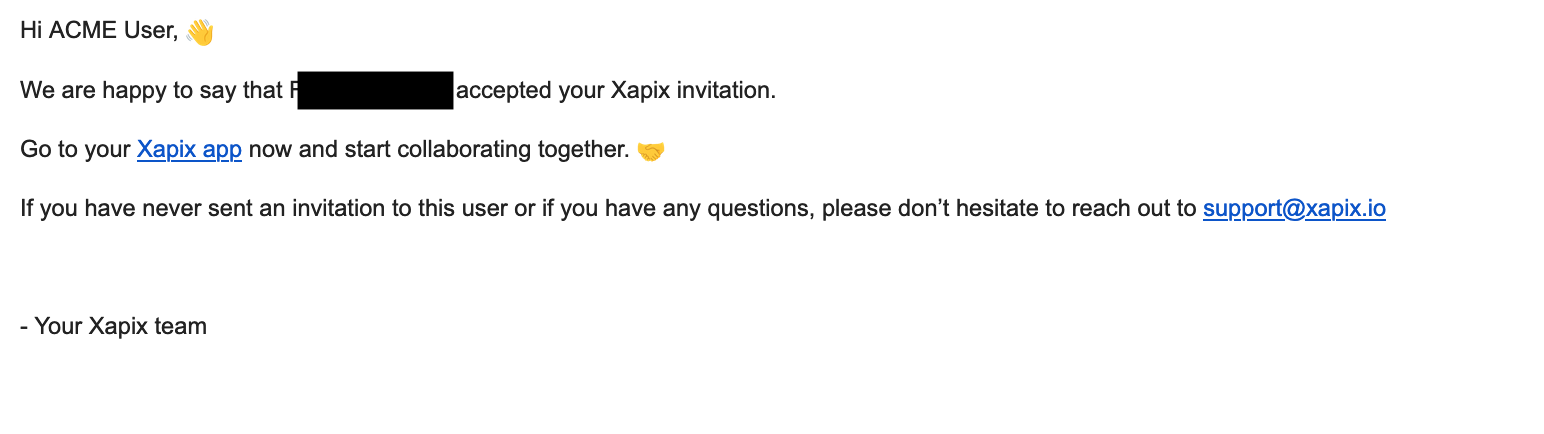
4. Once they accept the invitation, you will receive a confirmation email too

<figure><img src="/files/yHuevXdcuN7Udeiju2rs" alt=""><figcaption></figcaption></figure>


# Manage email Notifications

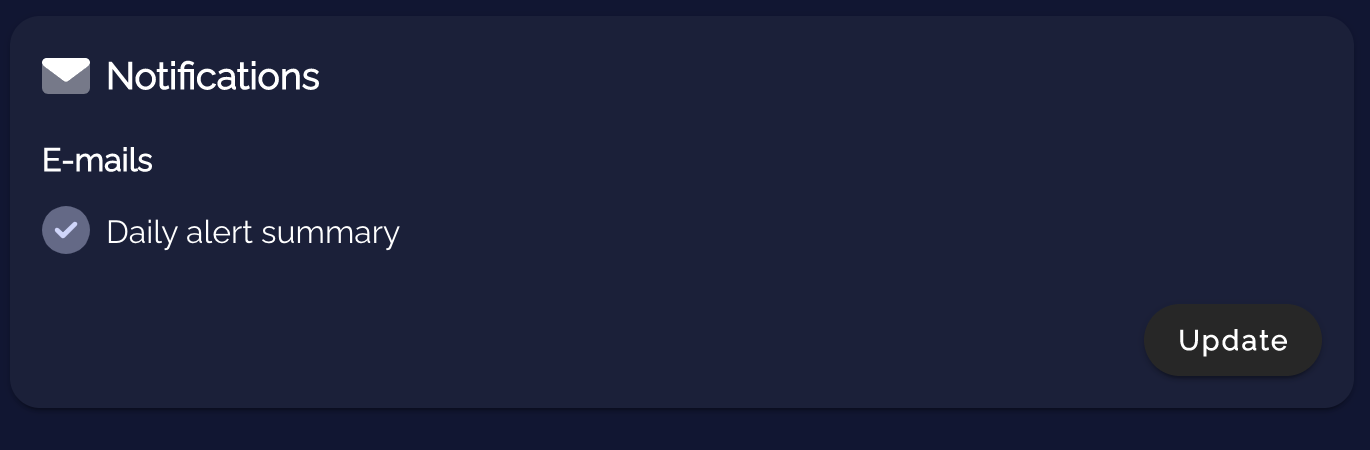
Our [AI Operations Assistant](broken://pages/73qgtWXMgScMi5ODHfpc) provides daily email summaries with updates on the available profit opportunity and details on new alerts. If you would like to opt-out or in of these notifications, you can do so on the User & Organization Settings page, under Notifications.

<figure><img src="/files/npomidoQGsyCLeU7xpuI" alt=""><figcaption></figcaption></figure>


# Subscribe to a Paid Plan

Upgrade to a paid plan to unlock the magic of Autopilot

1. To upgrade to a paid plan, you can click on the the **FREE / UPGRADE** icons that appear whenever you click on the User Icon in the top right hand corner of the application. Alternatively, you can navigate to the Settings Page and access the upgrade flow via the Subscription component

<figure><img src="/files/DlnIxcDcwV2nohMpMEkv" alt=""><figcaption></figcaption></figure>

2. You will then be taken through the pricing options and simple process for accessing your free 14 day trial

For details on pricing, please see our [pricing page](https://www.xapix.io/pricing)


# What's New

Stay up to date with the latest features and improvements in the Autopilot Portal. This page lists recent releases in reverse chronological order. Click any entry to jump to its full documentation.

***

## August 2026

* [**Listing Issues over MCP**](/autopilot-mcp/tools/list-listing-issues) - A new Autopilot MCP tool that lists the open listing issues across your enrolled ASINs, or on a single ASIN, so you can ask an AI assistant "do I have any active suppressions?" and triage problems from chat. It mirrors the portal's Listing Issues pages, covering Amazon-reported issues plus child ASINs disconnected from their parent.
* [**Publishing status over MCP**](/autopilot-mcp/tools/get-asin-listing#publishing-status) - The Get Product Listing MCP tool can now return a per-field publishing status, showing whether the live content is Autopilot's reference content or differs (submitted, blocked, or overwritten), the same statuses shown on the portal Product Page.

## July 2026

* [**Autopilot MCP**](/autopilot-mcp/autopilot-mcp) — Connect an AI assistant like Claude directly to your Autopilot account and ask questions about your listings in plain language. Read your enrolled ASINs, live listing content, Keyword Bank, USPs, product Facts, and customer Review Insights from chat, all scoped to your own access. See [Setup](/autopilot-mcp/setup) to get started.
* [**Child ASIN Disconnected from Parent**](/portal-pages/listing-issues/child-asin-disconnected-from-parent) — A new listing issue that flags when a child ASIN is dropped from its parent variation family and becomes standalone on Amazon, so you can reconnect it before it costs the product pooled reviews, traffic, and ranking. It resolves automatically once the child is part of a variation again.

## June 2026

* [**Unique Selling Points**](/portal-pages/product-page/unique-selling-points) — Autopilot now extracts and ranks the verified selling points behind your listing, shows where each one appears in your live content along with the evidence and confidence behind it, and uses them to drive optimization.
* [**Edit Requests**](/portal-pages/product-page/core-information#suggest-an-edit) — Suggest an edit on any listing field or USP directly from the Product Page; your feedback goes straight to the Autopilot team.

## May 2026

* [**Shopper Intent Tab**](/portal-pages/product-page/shopper-intent) — New tab on the Product Page surfacing the GEO Score, a 9-dimension radar chart, and per-dimension breakdown of how well a listing answers AI shopping assistant queries.

## April 2026

* [**Content Overwrites Page**](/portal-pages/content-overwrites) — New dedicated page to monitor ASINs where listing content has been changed externally since the last Autopilot optimization.


# Dashboard

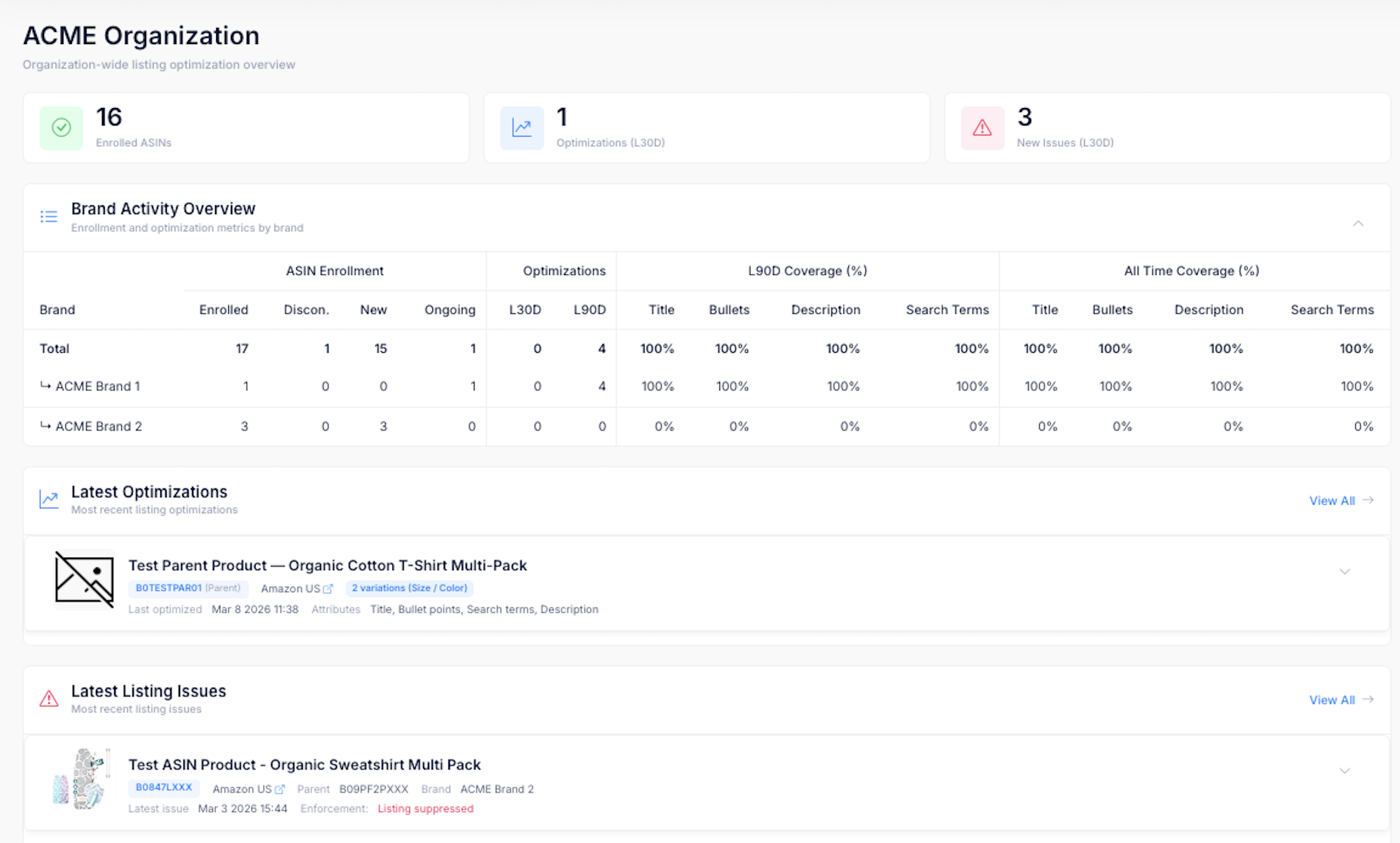
The Dashboard is your organization-wide overview of Autopilot activity. It gives you an at-a-glance summary of enrollment, recent optimizations, and any listing issues that need attention.

{% hint style="info" %}
The Dashboard is the first page you see when you log in to the Autopilot portal.
{% endhint %}

<figure><img src="/files/GOr1zwn1H82157DYR2vc" alt="Dashboard overview"><figcaption></figcaption></figure>

## Summary Cards

At the top of the Dashboard, you will find summary cards that highlight key metrics across your organization:

| Card                     | Description                                                                                |
| ------------------------ | ------------------------------------------------------------------------------------------ |
| **Enrolled ASINs**       | The total number of ASINs currently enrolled in Autopilot optimization.                    |
| **Optimizations (L30D)** | The number of listing optimizations Autopilot has submitted to Amazon in the last 30 days. |
| **New Issues (L30D)**    | The number of new listing issues detected by Amazon in the last 30 days.                   |

## Brand Activity Overview

The Brand Activity Overview table provides a detailed breakdown of enrollment and optimization metrics across each brand in your organization. A **Total** row at the top summarizes all brands, with individual brand rows below.

The table includes the following columns:

**ASIN Enrollment**

* **Enrolled** – Total ASINs currently active in Autopilot
* **Discon.** – ASINs that have been disconnected from Amazon since enrollment (e.g. inactive)
* **New** – ASINs recently enrolled and not yet optimized
* **Ongoing** – ASINs with active, ongoing optimization

**Optimizations**

* **L30D** – Number of optimizations submitted in the last 30 days
* **L90D** – Number of optimizations submitted in the last 90 days

**Coverage Percentages**

Coverage shows what percentage of enrolled ASINs have received at least one optimization for each listing element:

* **Title** – Percentage of ASINs with an optimized title
* **Bullets** – Percentage of ASINs with optimized bullet points
* **Description** – Percentage of ASINs with an optimized description
* **Search Terms** – Percentage of ASINs with optimized backend search terms

Coverage is shown for both **L90D** (last 90 days) and **All Time**, so you can track how optimization is progressing across your catalog.

## Latest Optimizations

This section shows the most recent Autopilot optimizations across your organization. Each entry displays the product image, title, ASIN badge, marketplace, variations count, the date of the last optimization, and which attributes were modified.

Click **View All** to navigate to the full [Optimization History](/portal-pages/optimization-history) page.

## Latest Listing Issues

This section shows the most recent listing issues detected by Amazon. Each entry includes the product image, title, ASIN badge, marketplace, parent ASIN (for child listings), brand, the date the issue was detected, and the enforcement status.

Click **View All** to navigate to the full [Listing Issues](/portal-pages/listing-issues) page.


# Products

The Products page gives you a complete overview of all ASINs enrolled in Autopilot across your organization and makes it easy to navigate to specific Autopilot product pages. Use this page to browse your catalog, search for specific products, and filter by brand or ASIN type.

## Filters

### Search

Use the search field to find products by ASIN, title, or brand name. Results update automatically as you type.

### Brand

Filter by brand using the dropdown. Only brands with enrolled ASINs in your organization are shown. Select **All Brands** to clear the filter.

### Marketplace

Filter by Amazon marketplace using the dropdown. All marketplaces are shown. Select **All Marketplaces** to clear the filter. This filter can be combined with the Brand and ASIN Type filters.

### ASIN Type

Filter by ASIN type:

* **All Types** – Show both Parent and Child ASINs
* **Parent ASINs** (default) – Show only Parent ASINs
* **Child ASINs** – Show only Child ASINs

## Product Tiles

Each enrolled ASIN is displayed as a tile with the following information:

* **Product Image** and **Title**
* **ASIN Badge** with Parent/Child type – click to navigate to the [Product Page](/portal-pages/product-page)
* **Marketplace Link** to the live Amazon listing
* **Parent ASIN** (for Child ASINs) – click to navigate to the parent's Product Page
* **Brand**
* **Variations** (for Parent ASINs) – The number of child ASINs and variation type
* **SEO Score** – The current score out of 10. See [SEO Score](/metrics/seo-score) for details on how the score is calculated.
* **Value Rating** – Revenue tier relative to other ASINs in the same brand
* **Last Optimized** – The date and time of the most recent optimization by Autopilot

The total number of matching entries is displayed below the list.


# Product Page

The Product Page is the central hub for a single ASIN. It brings together key information about the product: its current listing content, keyword data, and change events.

<figure><img src="/files/XI3XkBAUyFp8NmFzBLPz" alt="Product Page"><figcaption></figcaption></figure>

## Product Header

The header section displays key identifying information for the product:

* **Product Image** – The current listing image from Amazon
* **Product Title** – The full product title
* **ASIN Badge** – The ASIN identifier, with a Parent or Child label shown alongside
* **Marketplace Link** – A direct link to view the live listing on Amazon
* **Brand** – The brand name
* **Product Type** – The Amazon product type classification
* **Value Rating** – A rating based on revenue tier, indicating the relative importance of this ASIN to the overall seller portfolio
* **Variations** – For Parent ASINs, the number of child variations and the variation type (e.g., "2 variations (Size / Color)")

## Child ASINs (Parent Products Only)

For Parent ASINs, a collapsible **Enrolled Child ASINs** panel is available below the header. Click the variations badge (e.g., "2 variations (Size)") to expand the panel, which lists all enrolled child ASINs with their product image, title, ASIN badge, and marketplace link. Click any child ASIN to navigate to its Product Page.

## Active Issues

If the product has any active listing issues detected by Amazon, an issues summary appears below the header. It shows the number of open issues, when the latest issue was detected, and whether any carry enforcement actions (such as listing suppression).

Click to expand and see the individual issues, or navigate to the full [Listing Issues](/portal-pages/listing-issues) page.

## Tabs

The Product Page is organized into tabs, each covering a different aspect of the product:

| Tab                                                                 | Description                                                                                                                                                                |
| ------------------------------------------------------------------- | -------------------------------------------------------------------------------------------------------------------------------------------------------------------------- |
| [**Core Information**](/portal-pages/product-page/core-information) | The current listing content compared to Autopilot's reference content with field-level status tracking, the product's Unique Selling Points, and Suggest-an-Edit requests. |
| [**Shopper Intent**](/portal-pages/product-page/shopper-intent)     | The GEO Score and a per-dimension breakdown of how well the listing answers AI shopping-assistant queries.                                                                 |
| [**Keyword Bank**](/portal-pages/product-page/keyword-bank)         | A comprehensive table of all tracked keywords with ranking, search volume, and performance data.                                                                           |
| [**Event Timeline**](/portal-pages/product-page/event-timeline)     | A unified timeline of all changes to the listing, including external changes, image updates, and Autopilot submissions.                                                    |

{% hint style="info" %}
The Keyword Bank tab is not available for Parent ASINs, as keyword data applies to individual child listings.
{% endhint %}


# Core Information

The Core Information tab displays the current state of your product's listing content. It compares Autopilot's optimized reference content against what is currently live on Amazon, so you can see at a glance whether your listing is up to date.

<figure><img src="/files/XI3XkBAUyFp8NmFzBLPz" alt="Product Page with Core Information tab"><figcaption></figcaption></figure>

A link to the product's [Optimization History](/portal-pages/optimization-history/asin-optimization-history) is available in the top-right corner for quick access.

## Listing Fields

Each listing element is shown as a section:

* **Title** – The product title
* **Bullet points** – The product's bullet point features
* **Description** – The product description
* **Search terms** – Backend search terms (not visible to shoppers on Amazon)

For each field, the following information is displayed:

### Status Badge

A badge indicating the current state of the field:

| Status             | Meaning                                                                                                                                                                                                                    |
| ------------------ | -------------------------------------------------------------------------------------------------------------------------------------------------------------------------------------------------------------------------- |
| **Live**           | The Autopilot-optimized content is live on Amazon.                                                                                                                                                                         |
| **Submitted**      | An optimization has been submitted and is awaiting confirmation from Amazon.                                                                                                                                               |
| **Blocked Update** | A submission has been pending for more than 7 days. This may indicate Amazon has not accepted the change. Common reasons: a listing issue (e.g. missing attribute data) may be blocking the update, or it is out of stock. |
| **Overwritten**    | The live listing content has been changed externally (e.g., by another tool or directly in Seller Central) since the last Autopilot optimization.                                                                          |

### Content Theme

A label indicating the content theme applied to this field (e.g., "Evergreen Theme"). Content themes allow Autopilot to tailor listing content for seasonal or thematic relevance.

### Updated Timestamp

The date and time of the most recent Autopilot optimization for this field.

### Side-by-Side Comparison

When the live listing content differs from Autopilot's reference content, a side-by-side comparison is displayed:

* **Autopilot Reference** (left) – The optimized content that Autopilot submitted
* **Current Live** (right) – The content currently live on Amazon

This makes it easy to spot when a listing has drifted from its optimized state. If a field has been removed on Amazon (e.g., bullet points deleted), the Current Live column will indicate this.

{% hint style="warning" %}
An **Overwritten** status means someone or something outside of Autopilot has changed the listing content. Review the comparison to decide whether the external change should be kept or whether Autopilot should re-optimize the field.
{% endhint %}

## Other Attributes

Below the listing fields, additional product attributes from the Amazon catalog are displayed, which are optimized by Autopilot.

## Unique Selling Points

Further down the tab, a **Unique Selling Points** section shows the verified selling points Autopilot has identified for the product — ranked by priority, with their current coverage in your live listing and the evidence and confidence behind each one. These USPs drive how Autopilot optimizes your content.

See [Unique Selling Points](/portal-pages/product-page/unique-selling-points) for a full explanation.

## Suggest an Edit

Each listing field and each USP carries a **Suggest an Edit** pencil icon. Click it to open a short form and send a requested change or feedback — on the optimized content or the USP behind it — directly to the Autopilot team. This is the recommended way to influence Autopilot-managed content rather than editing it in Seller Central, which would show up as an [Overwritten](#status-badge) change.

{% hint style="info" %}
Suggested edits are reviewed by the Autopilot team and factored into the next optimization — they are not applied to your live listing automatically.
{% endhint %}


# Unique Selling Points

Unique Selling Points (USPs) are the verified selling points behind your product. Autopilot extracts them from your listing content and customer reviews — and can incorporate richer sources such as product spec sheets, product images, your direct-to-consumer site, and Product Information Management (PIM) data — then ranks them by how much they should drive a purchase and uses them to shape your optimized listing content.

USPs appear in a dedicated section on the [Core Information](/portal-pages/product-page/core-information) tab of the Product Page.

{% hint style="info" %}
The more product detail Autopilot has to work with — spec sheets, brand and DTC content, PIM data — the more complete and accurate your USPs become.
{% endhint %}

## What a USP is

Each USP is built on a **fact** — a specific, substantiated claim about the product (for example, "5g protein per pouch" or "carries up to 66 lb"). Autopilot turns that fact into a shopper-facing selling point and checks how strongly the listing and reviews support it.

The USPs table lists each one in priority order:

| Column              | Meaning                                                                                                                     |
| ------------------- | --------------------------------------------------------------------------------------------------------------------------- |
| **Priority**        | The rank of the USP — lower numbers are higher priority and are featured first in your content.                             |
| **Fact**            | The underlying, substantiated product claim.                                                                                |
| **Outcome**         | What that fact delivers for the shopper.                                                                                    |
| **In your listing** | Where the USP currently appears in your live listing (title, bullet points, description) — its coverage across the content. |

## Expanding a USP

Click a row to expand it and see the detail behind the USP:

* **Target audience** – the shopper this USP speaks to, expressed as interests and demographics.
* **Differentiator** – what sets this product apart from typical alternatives in its category.
* **Evidence** – the proof behind the fact, drawn from your listing and customer reviews, shown with a **confidence** rating.

### Confidence

The confidence rating reflects how strongly the underlying fact is supported. A fact stated clearly in the listing and echoed by positive customer reviews carries higher confidence than one mentioned only in passing.

## How USPs power your content

Autopilot prioritizes your highest-ranked USPs when it optimizes your listing — leading with the strongest, best-evidenced selling points and weaving the rest through the content. Keeping your USPs accurate and well-ordered directly shapes the content Autopilot produces.

USPs are generated automatically and refreshed as your listing and reviews change.

{% hint style="info" %}
The **In your listing** column shows whether each USP is actually present in your current content. A high-priority USP that isn't yet covered is a strong candidate for the next optimization.
{% endhint %}

## Suggesting an edit

If a USP is inaccurate, ranked incorrectly, or missing an important selling point, use the **Suggest an Edit** pencil on its row to send your feedback straight to the Autopilot team. See [Edit Requests](/portal-pages/product-page/core-information#suggest-an-edit) for how this works.


# Shopper Intent

The Shopper Intent tab shows how well your product listing answers the questions AI shopping assistants ask when recommending products. It scores the listing across nine shopper intent dimensions and rolls them up into a single GEO Score (Generative Engine Optimization, evaluated for Alexa for Shopping).

## GEO Score

The **GEO Score** at the top of the tab is the headline metric. It is a 0 to 10 number, calculated as a weighted sum of the nine per-dimension scores. The score is color coded so the result is legible at a glance: green for strong performance, yellow for average coverage, and red for listings that need work.

A tooltip on the "GEO Score" label confirms what GEO stands for: Generative Engine Optimization (Alexa for Shopping).

## Radar Chart

The radar chart on the left visualizes coverage across all nine dimensions. Each spoke is a dimension; the further the line reaches outwards on a spoke, the better the listing addresses that dimension. The scale on each axis runs from 0 to 5.

A balanced shape that reaches the outer edge indicates a listing that comprehensively addresses shopper intent. Indented spokes highlight dimensions where content can be strengthened.

## Dimensions Table

The table on the right lists every dimension with its score and a per-listing explanation:

| Dimension | What it evaluates                                                                                                                                |
| --------- | ------------------------------------------------------------------------------------------------------------------------------------------------ |
| Who       | Who it's used by (target audience)                                                                                                               |
| What For  | What it's used for and capable of doing (features, specific facts, quantifiable capabilities, functionality, situational context, lifestyle fit) |
| Why       | Why you would choose it over typical alternatives (unique features or differentiators supported by listing facts)                                |
| Outcomes  | Which outcomes it helps achieve (skill-building, UX improvement, emotional outcomes)                                                             |
| Where     | Where it's used (location)                                                                                                                       |
| How       | How it's used (application, care instructions)                                                                                                   |
| When      | When it's used (timing, frequency, seasonal relevance)                                                                                           |
| Used With | What it can be used with (complementary products / services)                                                                                     |
| Included  | What is included or not included                                                                                                                 |

Each dimension is scored from 1 to 5:

| Score | Rating                    |
| ----- | ------------------------- |
| 5     | Comprehensively addressed |
| 4     | Well addressed            |
| 3     | Somewhat addressed        |
| 2     | Barely addressed          |
| 1     | Not addressed             |

The dimensions are not weighted equally in the overall GEO Score. "What For" carries the highest weight, reflecting how much shoppers care about a product's primary purpose and capabilities. "Used With" and "Included" carry the lowest weight because they apply to fewer products.

The **Explanation** column shows a single-sentence summary, generated when the listing was scored, describing why each dimension received its rating and pointing to the relevant content from the listing.

## Where to Find It

The Shopper Intent tab is part of the [Product Page](/portal-pages/product-page), positioned between [Core Information](/portal-pages/product-page/core-information) and [Keyword Bank](/portal-pages/product-page/keyword-bank). It is available on Child and Parent ASINs once Autopilot has scored the listing.

## Using the Score to Improve a Listing

The most actionable use of the Shopper Intent breakdown is to identify dimensions that score 1 or 2 and strengthen the listing content to address them. A low score on **How** typically means the listing is missing usage instructions or care guidance; a low score on **Used With** suggests there is room to mention complementary products; a low score on **Who** points to an audience that is not yet explicit in the copy.

When the next optimization runs, Autopilot incorporates this signal automatically. The score then updates to reflect the improved coverage on the next scoring pass.

## Related

* [Core Information](/portal-pages/product-page/core-information) - Compare the live Amazon content against Autopilot's reference content for each field.
* [Optimization History](/portal-pages/optimization-history) - See when each optimization happened and what changed.
* [SEO Score](/metrics/seo-score) - The complementary keyword-coverage metric, scored alongside GEO.


# Keyword Bank

The Keyword Bank is a comprehensive view of all keywords tracked for a product. It combines data from Amazon's Search Query Performance Report (SQPR), advertising campaigns, and third-party sources to give you a complete picture of keyword coverage and performance.

{% hint style="info" %}
The Keyword Bank is only available for Child ASINs. Parent ASINs do not have keyword data, as keywords apply to individual product listings. For Parent ASIN level optimizations, Autopilot aggregates child-level keyword data automatically when creating the most relevant content.
{% endhint %}

## Filters

Use the filter bar to narrow down the keyword list:

| Filter            | Options                                          | Description                                                                                                                                    |
| ----------------- | ------------------------------------------------ | ---------------------------------------------------------------------------------------------------------------------------------------------- |
| **Restriction**   | All, Brand Only, Banned                          | Filter by keyword restriction status. Brand Only keywords are reserved for brand-specific use. Banned keywords are excluded from optimization. |
| **Location**      | All, Title, Bullets, Desc, S.Terms, Not Included | Filter by where the keyword currently appears in the listing, or find keywords that are not yet included.                                      |
| **Source**        | All, SQPR, Ads                                   | Filter by data source.                                                                                                                         |
| **Content Theme** | Varies by product                                | Filter by seasonal or thematic content group, when available.                                                                                  |
| **Search**        | Free text                                        | Search for a specific keyword or phrase.                                                                                                       |

## Keyword Table

The table displays each keyword with its ranking, restriction status, and performance data across multiple sources.

### Core Columns

| Column          | Description                                                                                                                                                                    |
| --------------- | ------------------------------------------------------------------------------------------------------------------------------------------------------------------------------ |
| **Keyword**     | The keyword or search phrase. Restriction tags (Banned, Restricted, Special Char, Superlative) appear as labels next to the keyword when applicable.                           |
| **Restriction** | A colored indicator dot: green (allowed), yellow (brand/backend only), or red (banned).                                                                                        |
| **Rank**        | Autopilot's internal ranking for this keyword based on relevance and performance.                                                                                              |
| **Included**    | The most prominent listing field where this keyword currently appears, blank if not yet included. Prominence is defined as Title > Bullet Points > Search Terms > Description. |

### Amazon SQPR Data

Data from Amazon's Search Query Performance Report, updated monthly:

| Column               | Description                                               |
| -------------------- | --------------------------------------------------------- |
| **Date**             | The reporting period for the SQPR data.                   |
| **Score**            | The keyword's search query score.                         |
| **Volume**           | Estimated search volume.                                  |
| **Clicks**           | Number of clicks attributed to this keyword.              |
| **Click Share %**    | Your product's share of total clicks for this keyword.    |
| **Purchases**        | Number of purchases attributed to this keyword.           |
| **Purchase Share %** | Your product's share of total purchases for this keyword. |

### Sourced Data

Third-party keyword intelligence data:

| Column        | Description                                                                     |
| ------------- | ------------------------------------------------------------------------------- |
| **Date**      | The reporting period.                                                           |
| **Volume**    | Estimated search volume from the third-party source.                            |
| **Relevancy** | A relevancy score (0–1) indicating how relevant this keyword is to the product. |

### Amazon Ads Data

Data from Amazon Advertising campaigns:

| Column                | Description                                               |
| --------------------- | --------------------------------------------------------- |
| **Date**              | The reporting period.                                     |
| **Impressions**       | Number of ad impressions for this keyword.                |
| **Clicks**            | Number of ad clicks.                                      |
| **Conversions (14d)** | Number of conversions within a 14-day attribution window. |
| **Click Rank Rec**    | Recommended rank based on click performance.              |
| **Conv Rank Rec**     | Recommended rank based on conversion performance.         |

## Sorting

Click any column header to sort the table by that column. Click again to reverse the sort direction. A chevron icon indicates the active sort column and direction.


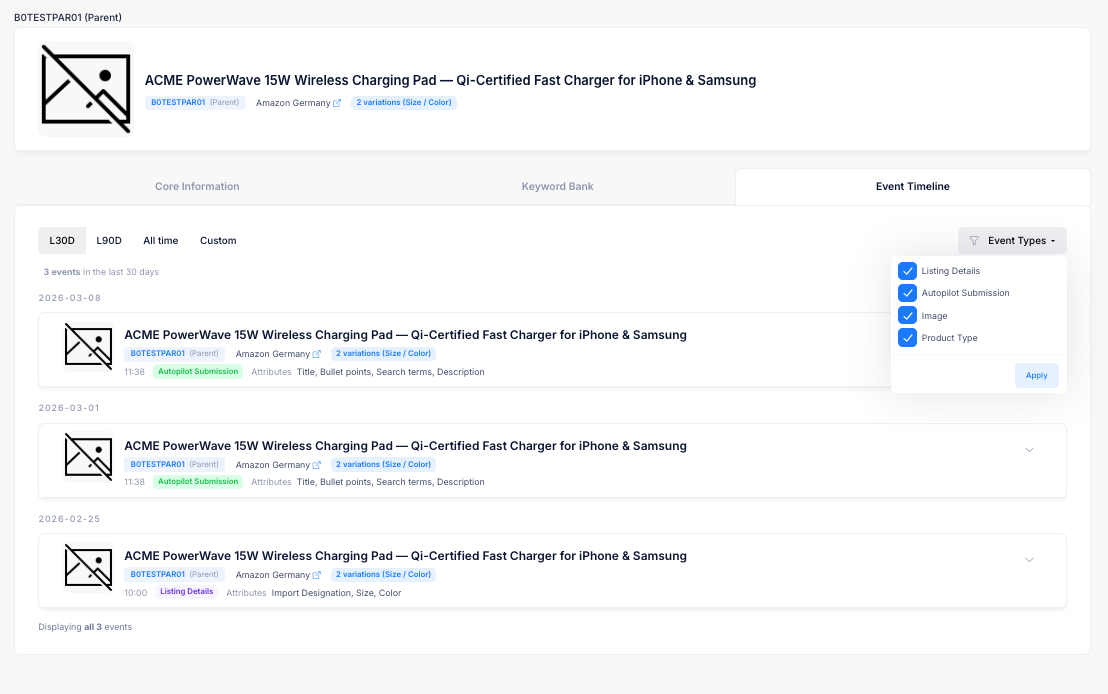
# Event Timeline

The Event Timeline provides a unified view of all changes that have occurred on a product listing. This includes Autopilot optimizations as well as external changes such as listing edits made outside of Autopilot, image updates, and product type changes.

Use the Event Timeline to understand the full history of changes to a listing and identify when specific changes may have impacted performance.

<figure><img src="/files/9KUINsNF0JgGQurgQQUg" alt="Event Timeline with event type filter"><figcaption></figcaption></figure>

## Filters

### Timeframe

Control the date range of events displayed:

* **L30D** (default)
* **L90D**
* **All time**
* **Custom** date range

An event count summary (e.g., "3 events in the last 30 days") is displayed below the timeframe selector.

### Event Types

Use the **Event Types** dropdown to filter by one or more event types. Each type has a checkbox, and you click **Apply** to update the results.

| Event Type               | Description                                                                                       |
| ------------------------ | ------------------------------------------------------------------------------------------------- |
| **Listing Details**      | Changes to listing content (title, bullets, description, search terms) made outside of Autopilot. |
| **Autopilot Submission** | Optimizations submitted by Autopilot.                                                             |
| **Image**                | Changes to the product's listing images.                                                          |
| **Product Type**         | Changes to the product's Amazon category or product type classification.                          |

## Event Cards

Events are grouped by date. Each card displays:

* **Product Image** and **Title**
* **ASIN Badge** with Parent/Child type
* **Marketplace Link**
* **Variations** count (for Parent ASINs)
* **Timestamp** of the event
* **Event Type Badge** – Color-coded by type (blue for Listing Details, green for Autopilot Submission, orange for Image, purple for Product Type)
* **Attributes** – Which attributes were changed in this event

For Autopilot Submissions, the **SEO Score** change badge is also displayed, showing the score before and after the optimization.

## Event Details

Click on any event card to expand it and view the full details. The expanded view varies by event type:

### Listing Details

A before/after comparison of each changed attribute, showing exactly what was modified on the live listing.

### Autopilot Submission

The full optimization details, including content changes, keyword impact, and Amazon submission status. This is the same detail view as the [Optimization History](/portal-pages/optimization-history).

### Image

Details of which images were added, removed, or changed.

### Product Type

The previous and new product type classification.


# Optimization History

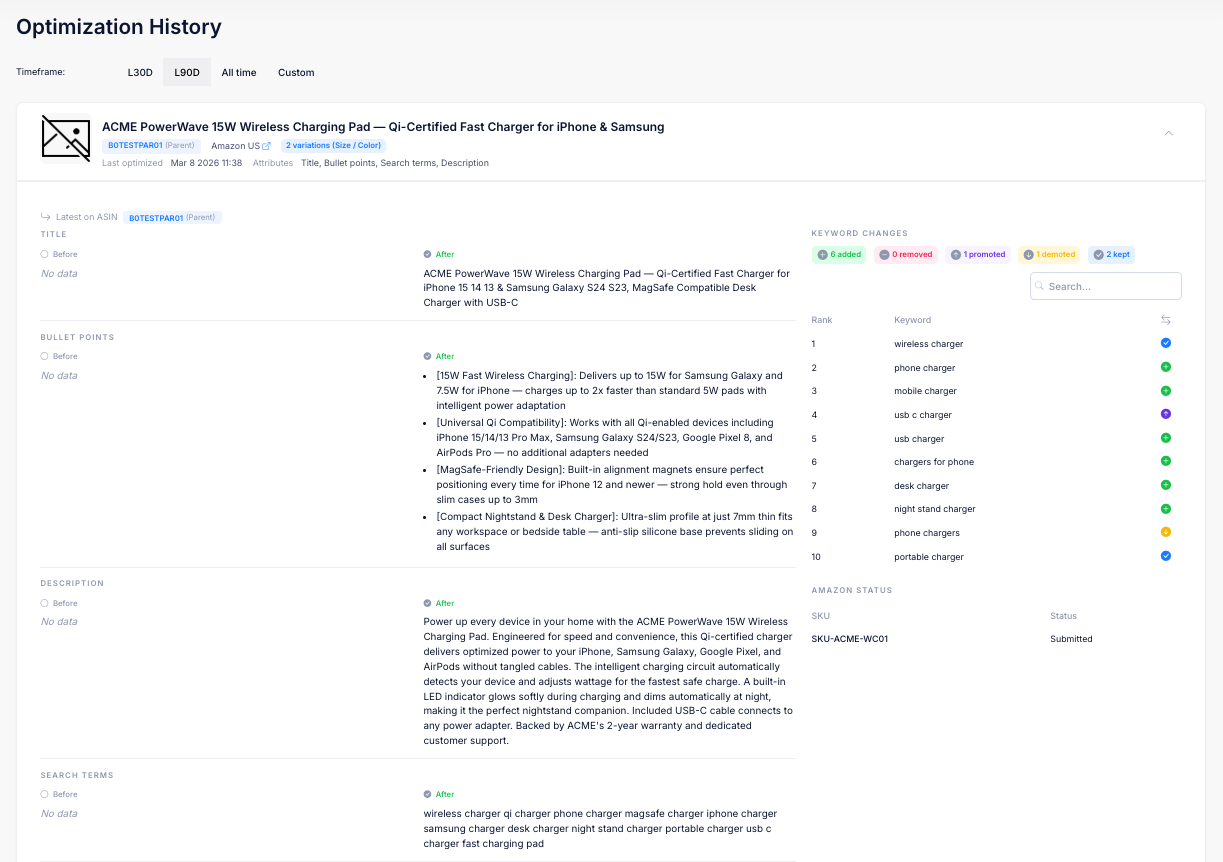
The Optimization History page shows a timeline of all listing optimizations that Autopilot has submitted across your organization, grouped by Parent ASIN. This gives you a high-level view of optimization activity, with the ability to drill into individual ASINs for full detail.

<figure><img src="/files/iOs3CNaUP2dv37XLA9aI" alt="Optimization History page"><figcaption></figcaption></figure>

## Filters

### Timeframe

Use the timeframe selector to control the date range:

* **L30D** – Optimizations from the last 30 days (default)
* **L90D** – Optimizations from the last 90 days
* **All time** – Every optimization since enrollment
* **Custom** – Select a specific date range

### Brand

Filter by brand using the dropdown. Only brands with enrolled ASINs in your organization are shown. Select **All Brands** to clear the filter.

### Marketplace

Filter by Amazon marketplace using the dropdown. All marketplaces are shown. Select **All Marketplaces** to clear the filter. This filter can be combined with the Timeframe and Brand filters.

## Optimization Cards

Each card represents a Parent ASIN (or a standalone Child ASIN if no parent exists) and shows the most recent optimization activity within that group. Cards are grouped by date.

* **Product Image** and **Title**
* **ASIN Badge** – The Parent ASIN (or Child ASIN if standalone) with a Parent/Child label
* **Marketplace Link** to the live Amazon listing
* **Variations** – The number of child ASINs and variation type (e.g., "2 variations (Size / Color)")
* **Last Optimized** – The date and time of the most recent optimization
* **Attributes** – Which listing fields were updated (e.g., Title, Bullet points, Search terms, Description)
* **SEO Score** – The current score, color-coded by performance level, with a delta badge showing the change from the previous score. See [SEO Score](https://github.com/xapix-io/docs/tree/master/portal-pages/metrics/seo-score.md) for details on how the score is calculated.

At the bottom of each card, an **optimization count** shows the total number of optimizations across this parent and its child ASINs within the selected timeframe (e.g., "4 optimizations across this parent and its 2 child ASINs in the last 90 days").

## Expanded Details

Click on any card to expand it and see the details of the most recent optimization within that group. The expanded view shows a "Latest on ASIN" label indicating which specific Child ASIN (or the Parent ASIN itself) was most recently optimized.

### Content Changes

For each modified listing field, a side-by-side comparison is displayed:

* **Before** (left) – The listing content prior to optimization
* **After** (right) – The new content submitted by Autopilot

Note: the content changes reflect what was submitted to Amazon. It does not necessarily reflect what is currently live on Amazon, as Amazon may reject the update or the content may be overwritten after going live. See the [Core Information](/portal-pages/product-page/core-information) tab on the Product Page for the status on what is currently live.

### Keyword Changes

A summary of keyword-level impact is shown alongside the content comparison. Each keyword is listed with its rank and categorized by how it was affected by the optimization:

| Change Type  | Icon   | Meaning                                                                        |
| ------------ | ------ | ------------------------------------------------------------------------------ |
| **Added**    | Green  | Keyword was added to the listing for the first time.                           |
| **Removed**  | Red    | Keyword was removed from the listing.                                          |
| **Promoted** | Purple | Keyword was moved to a more prominent field (e.g., from Bullets to Title).     |
| **Demoted**  | Orange | Keyword was moved to a less prominent field (e.g., from Title to Description). |
| **Kept**     | Blue   | Keyword remained in the same field or at the same prominence level.            |

Field prominence follows the hierarchy: **Title > Bullet Points > Description > Search Terms**.

Click on any change type label to reorder the keyword list, focusing on keywords with that specific change type. A search field is also available to find specific keywords.

#### Restriction Tags

Keywords may also display restriction tags that indicate how Autopilot is permitted to use them:

| Tag              | Meaning                                                                                                           |
| ---------------- | ----------------------------------------------------------------------------------------------------------------- |
| **Banned**       | The keyword is excluded from all listing content.                                                                 |
| **Restricted**   | The keyword is restricted to backend search terms only and will not appear in the title, bullets, or description. |
| **Brand**        | The keyword is a brand term.                                                                                      |
| **Superlative**  | The keyword contains a superlative claim (e.g., "best", "strongest") which may require substantiation on Amazon.  |
| **Special Char** | The keyword contains special characters.                                                                          |

### Amazon Status

The submission status for each SKU is displayed, confirming whether Amazon has accepted the content update.

## Viewing Full ASIN History

To see the complete optimization history for a specific Parent or Child ASIN, click **View full history** at the bottom of the expanded card. This takes you to the [ASIN Optimization History](/portal-pages/optimization-history/asin-optimization-history) page for that product.


# ASIN Optimization History

The ASIN Optimization History page shows the complete optimization timeline for a single Parent or Child ASIN. You reach this page by clicking **View full history** from a card on the main [Optimization History](/portal-pages/optimization-history) page, or via the **Optimization History** link on the [Core Information](/portal-pages/product-page/core-information) tab of a Product Page.

## Page Header

The header identifies the specific ASIN and product:

* **Product Image** and **Title**
* **ASIN Badge** with Parent/Child type
* **Marketplace Link** to the live Amazon listing
* **Variations** count and type (for Parent ASINs)

## Timeframe Filter

Use the timeframe selector to control the date range:

* **L30D** (default)
* **L90D**
* **All time**
* **Custom** date range

## Optimization Cards

Each card represents a single Autopilot optimization for this ASIN, grouped by date. Each card shows:

* **Last Optimized** – The date and time of the optimization
* **Attributes** – Which listing fields were updated (e.g., Title, Bullet points, Search terms, Description)
* **SEO Score** – The score at the time of this optimization, with a delta badge showing the change. See [SEO Score](/metrics/seo-score) for details.

## Before/After Comparison

Click on any card to expand it and see the full optimization details:

### Content Changes

For each modified listing field, a side-by-side comparison is displayed:

* **Before** (left) – The listing content prior to optimization
* **After** (right) – The new content submitted by Autopilot

Note: the content changes reflect what was submitted to Amazon. It does not necessarily reflect what is currently live on Amazon, as Amazon may reject the update or the content may be overwritten after going live. See the [Core Information](/portal-pages/product-page/core-information) tab on the Product Page for the status on what is currently live.

### Keyword Changes

A summary of keyword-level impact is shown alongside the content comparison. Each keyword is listed with its rank and categorized by how it was affected by the optimization:

| Change Type  | Icon   | Meaning                                                                        |
| ------------ | ------ | ------------------------------------------------------------------------------ |
| **Added**    | Green  | Keyword was added to the listing for the first time.                           |
| **Removed**  | Red    | Keyword was removed from the listing.                                          |
| **Promoted** | Purple | Keyword was moved to a more prominent field (e.g., from Bullets to Title).     |
| **Demoted**  | Orange | Keyword was moved to a less prominent field (e.g., from Title to Description). |
| **Kept**     | Blue   | Keyword remained in the same field or at the same prominence level.            |

Field prominence follows the hierarchy: **Title > Bullet Points > Description > Search Terms**.

Click on any change type label to reorder the keyword list, focusing on keywords with that specific change type. A search field is also available to find specific keywords.

#### Restriction Tags

Keywords may also display restriction tags that indicate how Autopilot is permitted to use them:

| Tag              | Meaning                                                                                                           |
| ---------------- | ----------------------------------------------------------------------------------------------------------------- |
| **Banned**       | The keyword is excluded from all listing content.                                                                 |
| **Restricted**   | The keyword is restricted to backend search terms only and will not appear in the title, bullets, or description. |
| **Brand**        | The keyword is a brand term.                                                                                      |
| **Superlative**  | The keyword contains a superlative claim (e.g., "best", "strongest") which may require substantiation on Amazon.  |
| **Special Char** | The keyword contains special characters.                                                                          |

### Amazon Status

The submission status for each SKU is displayed, confirming whether Amazon has accepted the content update.


# Listing Issues

The Listing Issues page gives you an organization-wide view of all active listing issues detected by Amazon across your enrolled ASINs. Use this page to monitor for policy violations, suppression warnings, and other issues that may affect your listings.

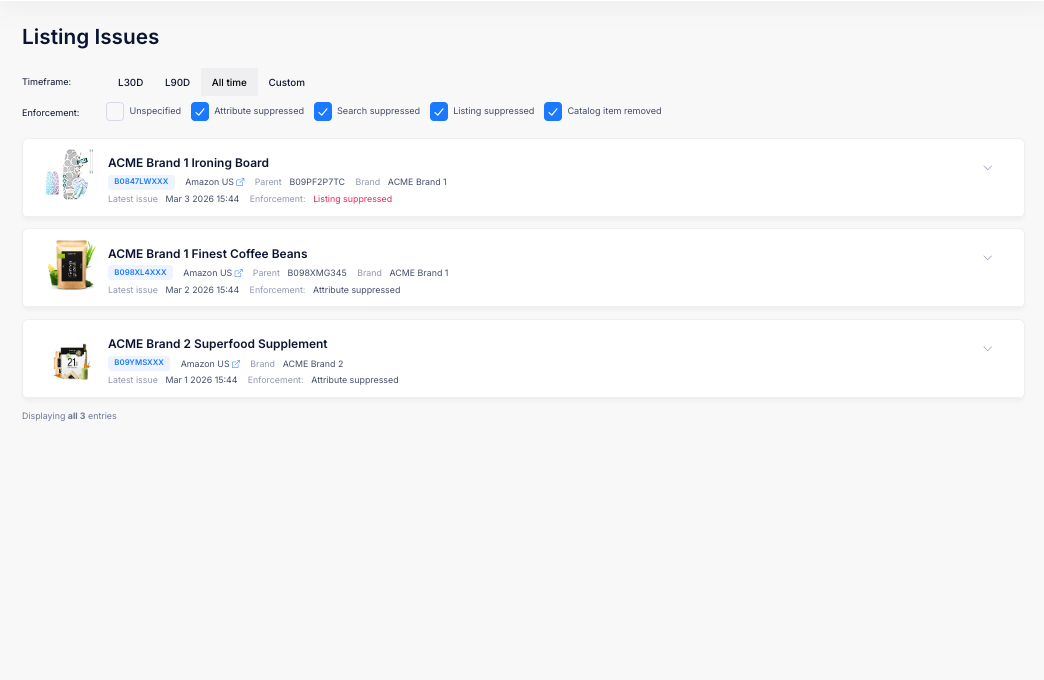
<figure><img src="/files/ayMaXpCTUjEZONqG6hy8" alt="Listing Issues page"><figcaption></figcaption></figure>

## Filters

### Timeframe

Control the date range for detected issues:

* **L30D** (default)
* **L90D**
* **All time**
* **Custom** date range

### Brand

Filter by brand using the dropdown. Only brands with enrolled ASINs in your organization are shown. Select **All Brands** to clear the filter.

### Marketplace

Filter by Amazon marketplace using the dropdown. All marketplaces are shown. Select **All Marketplaces** to clear the filter. This filter can be combined with the Timeframe, Brand, and Impact filters.

### Impact

Filter by impact using the checkbox bar. Select one or more impact levels to focus on the issues that matter most:

* **Unspecified** – No specific impact indicated
* **Attribute suppressed** – A specific attribute has been suppressed by Amazon
* **Search suppressed** – The listing has been suppressed from search results
* **Listing suppressed** – The entire listing has been suppressed and is no longer visible to shoppers
* **Catalog item removed** – The product has been removed from the Amazon catalog, or will be removed at a future date (in which case an Exemption Expiration Date will show)
* **Variation disconnected** – A child ASIN has been dropped from its parent variation family and is now standalone. See [Child ASIN Disconnected from Parent](/portal-pages/listing-issues/child-asin-disconnected-from-parent)

## Issue Tiles

Each ASIN with active issues is displayed as an expandable tile:

* **Product Image** and **Title**
* **ASIN Badge** with Parent/Child type
* **Marketplace Link** to the live Amazon listing
* **Parent ASIN** (for Child ASINs) – click to navigate to the parent's Product Page
* **Brand**
* **Latest Issue** – When the most recent issue was detected
* **Impact** – The impact of the issue, highlighted in red for severe actions (e.g., "Listing suppressed") or in default styling if unspecified

The total number of matching entries is displayed below the list (e.g., "Displaying all 3 entries").

## Issue Details

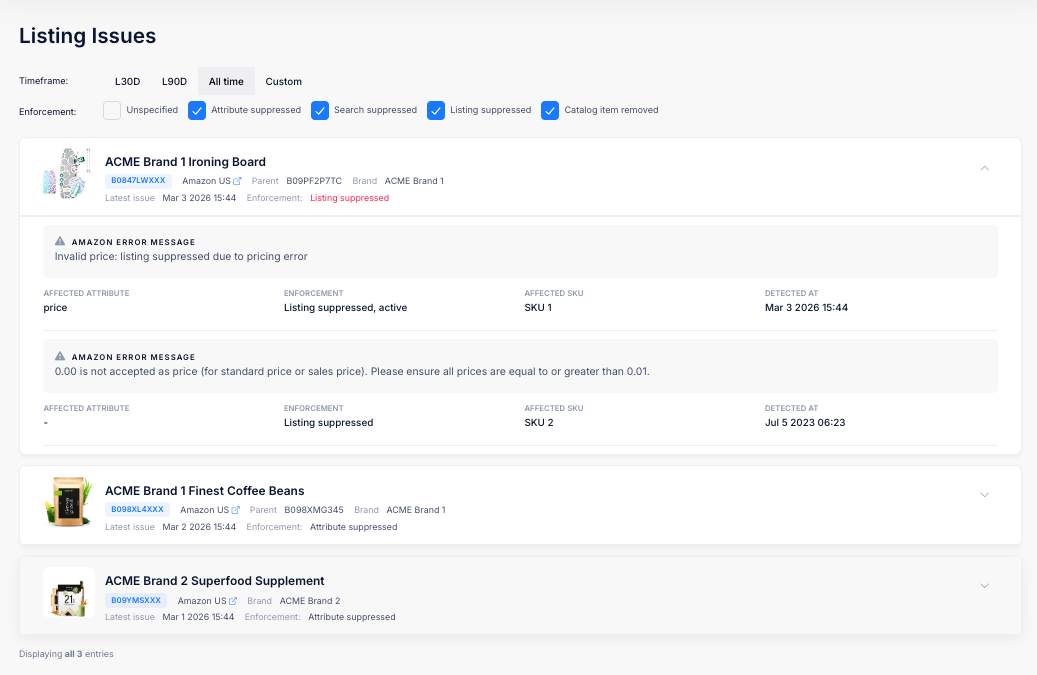
Click on a tile to expand it and see the individual issues for that ASIN.

<figure><img src="/files/jCtqhsrl7HBzeMml9uA7" alt="Listing Issues with expanded issue details"><figcaption></figcaption></figure>

Each issue displays:

| Field                    | Description                                                                                                                 |
| ------------------------ | --------------------------------------------------------------------------------------------------------------------------- |
| **Amazon Error Message** | Amazon's description of the issue, shown in a highlighted message box. Severe issues are highlighted with a red background. |
| **Affected Attribute**   | The listing field the issue relates to (e.g., price, images, title).                                                        |
| **Impact**               | The impact of the issue and its current status (e.g., "Listing suppressed, active").                                        |
| **Affected SKU**         | The specific SKU with the issue.                                                                                            |
| **Detected At**          | The date and time the issue was first detected.                                                                             |

{% hint style="warning" %}
Issues with enforcement actions such as **Listing suppressed** require immediate attention, as they mean the listing is no longer visible to shoppers on Amazon.
{% endhint %}


# Child ASIN Disconnected from Parent

Amazon variation families group related child ASINs (for example, the different sizes and colours of a product) under a single parent ASIN. When a child ASIN is dropped from its variation family, it becomes a **standalone** listing on Amazon, even though Autopilot still knows which parent it belongs to.

Autopilot detects this and raises a **Child ASIN Disconnected from Parent** listing issue so you can fix it before it hurts the product's performance.

## What you will see

This issue appears on the [Listing Issues](/portal-pages/listing-issues) page on the affected **child ASIN**, with:

| Field        | Value                                                                       |
| ------------ | --------------------------------------------------------------------------- |
| **Impact**   | Variation disconnected                                                      |
| **Severity** | Error                                                                       |
| **Message**  | Child ASIN `B0XXXXXXXX` has been disconnected from Parent ASIN `B0YYYYYYYY` |

The issue tile still shows the **Parent** badge for the ASIN, because Autopilot continues to map the child to its variation family. That is exactly the mismatch this issue is flagging: Autopilot has the relationship, but Amazon no longer does.

{% hint style="info" %}
Most listing issues surface an error message reported by Amazon. This one is different: Autopilot detects it by comparing your live Amazon catalog structure against the variation family it has on record, so it can catch a silent disconnect that Amazon does not raise as an error of its own.
{% endhint %}

## Why it matters

A disconnected child no longer shares the strengths of its variation family:

* **Reviews and ratings stop pooling.** Standalone children lose the combined star rating and review count of the family, which shoppers rely on.
* **Traffic and ranking fragment.** The variation family's search relevance and Best Seller Rank are split, so the standalone child is harder to find and converts less well.
* **The shopping experience breaks.** Shoppers can no longer switch to the disconnected size or colour from the parent's buying options.

## Common causes

Disconnects usually trace back to the variation attributes in Amazon:

* Amazon dropped the variation relationship during a catalog update.
* Two children ended up sharing the same variation values (for example, the same size and colour combination), so Amazon rejects one of them from the family.
* A size or colour attribute does not match what the title implies, making two distinct children look identical to Amazon.
* The parent SKU is missing from the Seller or Vendor Central account the child is managed in.

## How to resolve it

Re-add the child to a variation family in Seller or Vendor Central. You can reconnect it to its original parent or to a different parent, as long as it is no longer standalone. If the disconnect was caused by clashing variation attributes, correct the size or colour values so the child is unique within the family first.

{% hint style="success" %}
This issue resolves **automatically**. Once Amazon shows the child as part of a variation again, Autopilot clears the issue on its next catalog sync. There is nothing to dismiss manually.
{% endhint %}


# Content Overwrites

The Content Overwrites page gives you an organization-wide view of ASINs where the live Amazon listing content has been changed externally since the last Autopilot optimization. This helps you quickly identify listings that have drifted from the optimized content Autopilot published — for example, because changes were made by another tool or directly in Seller Central.

## Filters

### Status

Control which overwrites are shown using the checkbox bar:

* **Open** (default) – Content overwrites that are currently active. The live listing content still differs from Autopilot's reference.
* **Resolved** – Content overwrites that have been resolved, either because the content was restored to match Autopilot's reference or a new optimization was applied. Use the Resolved view to understand how frequently overwrites have impacted your ASINs over time.

### Timeframe

Control the date range for when overwrites were detected:

* **L30D** (default)
* **L90D**
* **All time**
* **Custom** date range

### Brand

Filter by brand using the dropdown. Only brands with enrolled ASINs in your organization are shown. Select **All Brands** to clear the filter.

### Marketplace

Filter by Amazon marketplace using the dropdown. Select **All Marketplaces** to clear the filter.

### Value Rating

Filter by ASIN value rating (A, B, or C) to focus on your highest-value listings first. Select **All Ratings** to clear the filter.

## Content Overwrite Tiles

Each ASIN with a detected content overwrite is displayed as an expandable tile:

* **Product Image** and **Title**
* **ASIN Badge** with Parent/Child type — click to navigate to the Product Page
* **Marketplace Link** to the live Amazon listing
* **Parent ASIN** (for Child ASINs) — click to navigate to the parent's Product Page
* **Brand**
* **Detected** — When the content overwrite was first detected
* **Affected Attributes** — Badges showing which listing fields were changed externally (e.g., Title, Bullet Points, Description)

The total number of matching entries is displayed below the list.

## Content Comparison

Click on a tile to expand it and see a side-by-side comparison for each affected field.

Each affected field displays:

| Column                  | Description                                                                                                     |
| ----------------------- | --------------------------------------------------------------------------------------------------------------- |
| **Autopilot Reference** | The content Autopilot published during the last optimization. This is what the listing *should* contain.        |
| **Current Live**        | The content currently live on Amazon. Differences from the reference indicate where external changes were made. |

The status badge next to each field name shows **Overwritten** to indicate the field has been changed externally.

{% hint style="info" %}
No manual action is required. Autopilot automatically resubmits its reference content to Amazon to restore the optimized listing whenever an overwrite is detected.
{% endhint %}

{% hint style="warning" %}
If you see recurring content overwrites for the same ASIN, check whether another tool or team member is making changes to the listing outside of Autopilot. Coordinating listing management through a single tool helps prevent conflicting changes.
{% endhint %}


# Overview

Connect an AI assistant like Claude directly to your Autopilot account and ask questions about your Amazon listings in plain language.

The Autopilot MCP server lets AI assistants such as Claude connect directly to your Autopilot account. Once connected, you can ask questions about your Amazon listings in plain language and get answers grounded in your real product data — enrolled ASINs, live listing content, the Keyword Bank, Unique Selling Points, product Facts, and customer Review Insights — without leaving your chat.

MCP (the [Model Context Protocol](https://modelcontextprotocol.io)) is an open standard for connecting AI assistants to external tools and data. Autopilot exposes a set of read tools over MCP; the assistant decides which to call based on what you ask, and every call is scoped to the data your Autopilot account can already see.

{% hint style="info" %}
Access is authenticated with your own Autopilot login over OAuth, and is limited to organizations and ASINs you are already enrolled in. The assistant can only **read** your data through these tools — it cannot publish changes to Amazon.
{% endhint %}

## Getting started

Connect the server once in your AI assistant, then start asking questions.

* [**Setup**](/autopilot-mcp/setup) — connect Autopilot to your assistant.

After connecting, try a prompt like:

> *"Using Autopilot, what are the current listing details of ASIN B07XYZ1234 in the US?"*


# Setup

Connect the Autopilot MCP server in your AI assistant.

Connecting takes a minute and only needs to be done once per assistant. You authenticate with your normal Autopilot login, and access is limited to what your account can already see.

The Autopilot MCP endpoint is:

```
https://my.autopilotbrand.com/mcp
```

{% hint style="info" %}
You need an active Autopilot account. During setup you'll be sent to the Autopilot login page to authorize access — the same credentials you use for the portal.
{% endhint %}

## Choose your assistant

Follow the guide for the assistant you use:

* [**Claude Desktop & claude.ai**](/autopilot-mcp/setup/claude) — add Autopilot as a custom connector.
* [**Claude Code**](/autopilot-mcp/setup/claude-code) — add Autopilot from the command line.
* [**ChatGPT**](/autopilot-mcp/setup/chatgpt) — add Autopilot via Developer Mode.

## Using it

Once connected, just ask in plain language and reference Autopilot when helpful:

> *"Using Autopilot, list the top USPs for ASIN B07XYZ1234 in the US and tell me which ones aren't in the title yet."*

See the [Autopilot MCP overview](/autopilot-mcp/autopilot-mcp) for everything you can ask.

{% hint style="warning" %}
If your assistant reports it can't reach Autopilot or that authentication expired, reconnect using the steps on its setup page above. Access always uses your current Autopilot session and permissions.
{% endhint %}


# Claude Desktop & claude.ai

Connect Autopilot in Claude Desktop or claude.ai.

Add Autopilot as a custom connector. The Autopilot MCP endpoint is `https://my.autopilotbrand.com/mcp`.

1. Open **Chat**, then go to **Customize → Connectors**.
2. Click **+ → Add custom connector**.
3. Fill in:
   * **Name:** `Autopilot`
   * **URL:** `https://my.autopilotbrand.com/mcp`
   * Leave the remaining fields blank.
4. Click **Add**, then follow the OAuth flow to sign in to Autopilot and authorize access.

Once connected, Autopilot appears in your list of connectors and its tools become available in chat.

{% hint style="warning" %}
If the assistant reports it can't reach Autopilot or that authentication expired, remove and re-add the connector to reconnect. Access always uses your current Autopilot session and permissions.
{% endhint %}

See the [Setup overview](/autopilot-mcp/setup) for the other assistants, or the [Autopilot MCP overview](/autopilot-mcp/autopilot-mcp) for everything you can ask.


# Claude Code

Connect Autopilot in Claude Code.

Add Autopilot from the command line.

1. Add the server:

   ```bash
   claude mcp add --transport http Autopilot https://my.autopilotbrand.com/mcp
   ```
2. Restart Claude Code when prompted.
3. Run `/mcp`. Autopilot appears alongside your other servers, showing that **authentication is required**.
4. Select it to start the login. Your browser opens the Autopilot login page and asks you to confirm access for Claude Code.
5. After you confirm, the terminal reports that authentication was successful.

Autopilot's tools are now available in your Claude Code session.

{% hint style="warning" %}
If authentication expires, run `/mcp` and re-authenticate. Access always uses your current Autopilot session and permissions.
{% endhint %}

See the [Setup overview](/autopilot-mcp/setup) for the other assistants, or the [Autopilot MCP overview](/autopilot-mcp/autopilot-mcp) for everything you can ask.


# ChatGPT

Connect Autopilot in ChatGPT using Developer Mode.

Connecting Autopilot in ChatGPT uses **Developer Mode**, available on plans that support custom MCP connectors (such as ChatGPT Plus). The Autopilot MCP endpoint is `https://my.autopilotbrand.com/mcp`.

## 1. Enable Developer Mode

1. Go to **Settings**.
2. Open **Plugins**.
3. Find **Developer Mode** and turn it on.

Developer Mode is off by default, so it must be enabled before continuing.

## 2. Add the Autopilot connection

1. In **Plugins**, click the **+** button.
2. Add the **Autopilot** MCP connection, using the endpoint URL above.
3. Choose **Site**.
4. Select **OAuth** for authentication.

This completes the initial connection setup.

## 3. Sign in and authorize

1. After selecting OAuth, you're prompted to sign in.
2. Follow the authorization flow to finish connecting.
3. Once authenticated, verify that the connection is active and working.

{% hint style="warning" %}
If the connection stops working or authentication expires, reopen the Autopilot connection in **Plugins** and re-authorize. Access always uses your current Autopilot session and permissions.
{% endhint %}

See the [Setup overview](/autopilot-mcp/setup) for the other assistants, or the [Autopilot MCP overview](/autopilot-mcp/autopilot-mcp) for everything you can ask.


# Tools

The read tools Autopilot exposes over MCP, and how they fit together.

Autopilot exposes a set of read tools over MCP. The assistant picks the right one automatically based on what you ask — you don't call these by name — but they're listed here so you know what's possible, and each has its own page with use-cases and example prompts.

## Available tools

| Tool                                                             | Name                       | What it does                                                                                |
| ---------------------------------------------------------------- | -------------------------- | ------------------------------------------------------------------------------------------- |
| [List Organizations](/autopilot-mcp/tools/list-organizations)    | `list_organizations`       | Find the organizations you can access. Used automatically when you belong to more than one. |
| [Search ASINs](/autopilot-mcp/tools/search-asins)                | `search_asins`             | Find enrolled ASINs by text, marketplace, product type, or revenue tier.                    |
| [Get Product Listing](/autopilot-mcp/tools/get-asin-listing)     | `get_asin_listing`         | Read the live listing content for an ASIN — title, bullets, description, and more.          |
| [Listing Issues](/autopilot-mcp/tools/list-listing-issues)       | `list_listing_issues`      | List the open listing issues across your enrolled ASINs, or on a single ASIN.               |
| [Keyword Bank](/autopilot-mcp/tools/list-asin-keywords)          | `list_asin_keywords`       | Read an ASIN's Keyword Bank, including which keywords are used, missing, or restricted.     |
| [Unique Selling Points](/autopilot-mcp/tools/list-asin-usps)     | `list_asin_usps`           | Read an ASIN's ranked USPs and where each is covered in the live listing.                   |
| [Facts](/autopilot-mcp/tools/list-asin-facts)                    | `list_asin_facts`          | Read the verified product facts behind an ASIN, with evidence and confidence.               |
| [Review Insights](/autopilot-mcp/tools/get-asin-review-insights) | `get_asin_review_insights` | Read what customers praise and complain about, from Amazon review topics.                   |

## Identifiers

Most tools work on a single ASIN in a single marketplace, so you'll usually give the assistant two things:

* **ASIN** — the 10-character Amazon identifier, e.g. `B07XYZ1234`.
* **Marketplace** — which Amazon store. Common marketplace IDs:

| Marketplace    | ID               |
| -------------- | ---------------- |
| United States  | `ATVPDKIKX0DER`  |
| United Kingdom | `A1F83G8C2ARO7P` |
| Germany        | `A1PA6795UKMFR9` |

You can also just name the country ("the US listing", "on Amazon UK") and let the assistant map it.

{% hint style="info" %}
Your **organization** is detected automatically from your login, so you don't need to provide it. If your account can access more than one organization, the assistant uses [List Organizations](/autopilot-mcp/tools/list-organizations) to pick the right one — just name it when you ask.
{% endhint %}

## A typical conversation

The tools are designed to chain together, so a single question can span several of them:

1. **Find the product** — "Find my enrolled *hydration* products in the US." → [Search ASINs](/autopilot-mcp/tools/search-asins)
2. **Read its content** — "Show me the current title and bullets for that ASIN." → [Get Product Listing](/autopilot-mcp/tools/get-asin-listing)
3. **Dig into the data** — "Which high-volume keywords is it missing?" → [Keyword Bank](/autopilot-mcp/tools/list-asin-keywords), or "What are its top USPs and are they in the title?" → [USPs](/autopilot-mcp/tools/list-asin-usps)

The assistant strings these together for you; you just ask in plain language. For worked examples, see [Use Cases](/autopilot-mcp/use-cases).


# List Organizations

Find the organizations your Autopilot account can access.

`list_organizations`

Lists the organizations you're able to read listings for. Each result carries the internal identifier the other tools need, so this is the assistant's starting point whenever your account can access more than one organization.

## When it's used

You usually won't ask for this directly. The assistant calls it automatically to resolve which organization to work in — especially if you belong to several (for example, an agency managing multiple brands). Just name the organization in your question and the assistant matches it.

If your account only has one organization, it's detected automatically and this tool is rarely needed.

## What you can ask

> *"Which Autopilot organizations do I have access to?"*

> *"Use my **Acme** organization for the next questions."*

## Parameters

| Parameter | Required | Description                                                         |
| --------- | -------- | ------------------------------------------------------------------- |
| `query`   | No       | Case-insensitive substring to filter organizations by name or slug. |

## What you get back

For each organization you can access:

* Its name and slug.
* The identifier the other tools use to scope their reads to that organization.


# Search ASINs

Find your enrolled ASINs by text, marketplace, product type, or revenue tier.

`search_asins`

Searches the enrolled ASINs in your organization and returns a short list of matches — ASIN, marketplace, title, and Amazon product type — so you (and the assistant) can pick a product to look at in more detail. It's the usual first step when you don't already have an ASIN in hand.

## When it's used

Reach for this whenever you want to find products rather than read a specific one: browsing by keyword, focusing on your top revenue drivers, or narrowing to a single marketplace. The assistant typically follows up on your chosen result with [Get Product Listing](/autopilot-mcp/tools/get-asin-listing), [Keyword Bank](/autopilot-mcp/tools/list-asin-keywords), or the other per-ASIN tools.

## What you can ask

> *"Find my enrolled products with 'hydration' in the title on Amazon US."*

> *"List my top revenue-tier A ASINs in the UK."*

> *"Search my enrolled ASINs for the Acme brand."*

> *"List my SHOES ASINs on Amazon US."*

> *"How many enrolled ASINs do I have per product type?"*

## Parameters

| Parameter        | Required | Description                                                                                                                           |
| ---------------- | -------- | ------------------------------------------------------------------------------------------------------------------------------------- |
| `query`          | No       | Case-insensitive substring matched against ASIN, listing title, or brand name. Omit to list without text filtering.                   |
| `marketplace_id` | No       | Restrict to one marketplace (see the [Tools page](/autopilot-mcp/tools#identifiers) for IDs).                                         |
| `value_rating`   | No       | Revenue tier: **A** = top revenue ASINs for the brand, **B** = middle, **C** = bottom.                                                |
| `product_type`   | No       | Restrict to one Amazon product type — case-insensitive exact name as it appears in the result rows (e.g. `SHOES`, `BOOT`, `APPAREL`). |
| `page`           | No       | 1-indexed page number for paging through large result sets.                                                                           |

## What you get back

A paged list of minimal rows — `asin`, `marketplace_id`, `title`, and `product_type` — designed so the assistant can pick targets and chain into the per-ASIN tools. When there are more results, a next-page marker lets the assistant load more on request.

{% hint style="info" %}
The **value rating** (A/B/C) is Autopilot's revenue tier for the ASIN within its brand — a quick way to focus on your highest-revenue products (A) or your long tail (C).
{% endhint %}

{% hint style="info" %}
The **product type** is Amazon's classification for the ASIN (`SHOES`, `APPAREL`, …). It can be empty for recently enrolled ASINs whose catalog data hasn't been imported yet — those ASINs are excluded when you filter by `product_type`. The result's total count also makes quick per-type tallies possible: ask the assistant how your catalog splits across product types and it can answer with one cheap search per type.
{% endhint %}


# Get Product Listing

Read the live listing content for one of your enrolled ASINs.

`get_asin_listing`

Fetches the live listing content Autopilot holds for a single ASIN in a specific marketplace: title, item highlights, bullet points, description, search terms, brand, images, and variation information. It's the tool the assistant uses whenever you want to see or reason about what's actually on a product's listing.

## When it's used

Use it any time a question is about the current content of a listing — reviewing the title and bullets, checking the description, seeing how a product is written today, or comparing content before deciding what to improve. You can also ask whether that live content is the content Autopilot optimized and published, or whether it has since drifted (see [Publishing status](#publishing-status) below). It pairs naturally with the [Keyword Bank](/autopilot-mcp/tools/list-asin-keywords), [USPs](/autopilot-mcp/tools/list-asin-usps), and [Facts](/autopilot-mcp/tools/list-asin-facts) tools for a fuller picture.

## What you can ask

> *"Show me the current title and bullet points for B07XYZ1234 in the US."*

> *"What does the description say for this ASIN on Amazon UK?"*

> *"Is this a parent or child ASIN, and what are its variations?"*

> *"Is the content Autopilot optimized still live on B07XYZ1234, or has it been overwritten?"*

> *"Which fields on this ASIN are still waiting to go live on Amazon?"*

## Parameters

| Parameter                   | Required | Description                                                                                                                                                                              |
| --------------------------- | -------- | ---------------------------------------------------------------------------------------------------------------------------------------------------------------------------------------- |
| `asin`                      | Yes      | The 10-character ASIN.                                                                                                                                                                   |
| `marketplace_id`            | Yes      | Which marketplace to read (see the [Tools page](/autopilot-mcp/tools#identifiers) for IDs).                                                                                              |
| `include_publishing_status` | No       | The assistant adds this when your question is about publishing or live status, returning a per-field `publishing_status` section (see below). You don't set it yourself. Off by default. |

## What you get back

The listing content for the ASIN in that marketplace, including:

* **Title**, **item highlights**, **bullet points**, and **description**.
* **Search terms** (backend keywords).
* **Brand**, **images**, and **variation info** (parent/child relationships).

### Publishing status

When you ask whether your optimized content is actually live, the assistant returns a `publishing_status` section alongside the listing. It reports, per content field, whether the live content is what Autopilot published or has diverged - the same statuses shown on the portal Product Page - so you can search for exactly which fields are live, pending, or overwritten. It contains:

* **Theme** - the live content theme, with its `type` (`evergreen` or `seasonal`) and `title`.
* **Fields** - one entry per content field (`title`, `item_highlights`, `bullet_points`, `description`, `search_terms`), each with a `status`:

  * `live` - Autopilot's reference content is what's live on Amazon.
  * `submitted` - sent to Amazon and awaiting confirmation.
  * `blocked` - submitted more than 7 days ago but not yet applied.
  * `overwritten` - changed externally since the last optimization.

  When a field's status is anything other than `live`, a `reference_value` is included showing what should be live.

When there's no active theme and nothing published, `fields` is empty and no `theme` is returned.

{% hint style="info" %}
Only ASINs enrolled with your organization are accessible. If a listing isn't found, confirm the ASIN and marketplace, and that the product is enrolled in Autopilot.
{% endhint %}


# Listing Issues

List the open listing issues across your enrolled ASINs, or on a single ASIN.

`list_listing_issues`

Lists the open [Listing Issues](/portal-pages/listing-issues) Autopilot is tracking: the issues Amazon reports against your listings (suppressions, invalid values, policy and compliance messages) plus Autopilot's own [Child ASIN Disconnected from Parent](/portal-pages/listing-issues/child-asin-disconnected-from-parent) detection. It mirrors what you'd see on the portal's Listing Issues pages, so the assistant can triage and prioritize problems from chat.

By default it looks organization-wide across your enrolled ASINs. Give it a single ASIN and it narrows to that product and its SKUs.

## When it's used

Use it whenever a question is about problems on your listings rather than their content: whether anything is suppressed right now, whether a specific ASIN has issues, or which issues are the most severe. It's the natural starting point for a triage or prioritization workflow, and pairs with [Get Product Listing](/autopilot-mcp/tools/get-asin-listing) to see the affected content.

## What you can ask

> *"Do I have any active suppressions right now?"*

> *"Are there any open listing issues on B07XYZ1234 in the US?"*

> *"Show me the error-severity issues across my enrolled ASINs."*

## Parameters

| Parameter        | Required | Description                                                                                                                                                                                                                                              |
| ---------------- | -------- | -------------------------------------------------------------------------------------------------------------------------------------------------------------------------------------------------------------------------------------------------------- |
| `asin`           | No       | A single ASIN to scope to, given as `{ id, marketplace_id }`. Covers that ASIN and its SKUs. Omit to look organization-wide across your enrolled ASINs.                                                                                                  |
| `severity`       | No       | Filter by severity: `info`, `warning`, or `error`. Defaults to `warning` and `error`.                                                                                                                                                                    |
| `effect`         | No       | Filter by the effect on the listing: `attribute_suppressed`, `search_suppressed`, `listing_suppressed`, `catalog_item_removed`, or `variation_disconnected`. Defaults to the important effects. Pass the suppression values to find active suppressions. |
| `value_rating`   | No       | Restrict to a revenue tier: **A**, **B**, or **C**.                                                                                                                                                                                                      |
| `marketplace_id` | No       | Restrict to one marketplace (see the [Tools page](/autopilot-mcp/tools#identifiers) for IDs).                                                                                                                                                            |
| `page`           | No       | 1-indexed page number for paging through large result sets.                                                                                                                                                                                              |
| `per_page`       | No       | How many issues to return per page.                                                                                                                                                                                                                      |

## What you get back

A paged list of open issues. Each one includes:

* **ASIN** and **marketplace**, plus the **SKU** for SKU-level issues.
* **Severity** - `info`, `warning`, or `error`.
* **Code** and **message** - Amazon's identifier and description of the issue.
* **Affected attribute** - the listing field the issue relates to (e.g. price, images, title).
* **Impact** - the human-readable effect on the listing.
* **Effect** and **effect status** - the machine effect (such as `listing_suppressed`) and whether it's currently active.
* **Exemption expires at** - when a scheduled action, such as a catalog removal, takes effect, where applicable.
* **Detected at** - when the issue was first detected.

When there are more results, a `next_page` marker lets the assistant load more on request.

{% hint style="warning" %}
Enforcement effects such as **listing suppressed** mean the listing is no longer visible to shoppers on Amazon and need immediate attention. Filter by `effect` on the suppression values to surface only active suppressions.
{% endhint %}


# Keyword Bank

Read an ASIN's Keyword Bank — what's used, what's missing, and what's restricted.

`list_asin_keywords`

Returns the per-ASIN Keyword Bank — the same data as the portal's [Keyword Bank](/portal-pages/product-page/keyword-bank) page. Each keyword carries its rank, restriction status, tags, which listing field it currently appears in, and headline performance stats. This is the tool behind any question about keyword coverage and opportunity.

## When it's used

Use it to understand keyword coverage for a product: which high-value terms are already in the title or bullets, which important terms are missing entirely, and which are restricted (brand-only or banned). The filters make it easy to answer targeted questions like "what's missing from the title?".

## What you can ask

> *"Which high-volume keywords are missing from B07XYZ1234's listing in the US?"*

> *"Show the keywords already used in the title for this ASIN."*

> *"Are there any banned or brand-restricted keywords in the bank for this product?"*

## Parameters

| Parameter            | Required | Description                                                                                                                                                                                   |
| -------------------- | -------- | --------------------------------------------------------------------------------------------------------------------------------------------------------------------------------------------- |
| `asin`               | Yes      | The 10-character ASIN.                                                                                                                                                                        |
| `marketplace_id`     | Yes      | Which marketplace (see the [Tools page](/autopilot-mcp/tools#identifiers) for IDs).                                                                                                           |
| `restriction`        | No       | `none` = clean, unrestricted candidates; `brand` = brand-tagged; `banned` = flagged not-allowed.                                                                                              |
| `location`           | No       | The listing field a keyword counts towards: `title`, `item_highlights`, `bullet_points`, `description`, `search_terms`, or `none` for keywords not used in any field (find missing coverage). |
| `source`             | No       | `sqpr` = keywords with Search Query Performance Report data; `ads` = keywords with Amazon Ads data.                                                                                           |
| `query`              | No       | Case-insensitive substring matched against the keyword text.                                                                                                                                  |
| `sort` / `direction` | No       | Sort field (defaults to rank) and direction.                                                                                                                                                  |
| `page`               | No       | 1-indexed page number for paging.                                                                                                                                                             |

## What you get back

For each keyword: its rank, restriction, tags, the single most prominent listing field it's currently used in (or none), and headline stats such as search volume. A keyword used in several fields is counted only towards its most prominent one, matching how the portal displays it.

{% hint style="info" %}
The Keyword Bank is only available for **child ASINs**. Parent ASINs don't have their own keyword data, since keywords apply to individual listings.
{% endhint %}

{% hint style="info" %}
Use the `location` filter set to **none** to answer "what keywords is this listing missing?" — it returns keywords that aren't yet used in any field.
{% endhint %}


# Unique Selling Points

Read an ASIN's ranked Unique Selling Points and where each is covered in the live listing.

`list_asin_usps`

Returns the [Unique Selling Points](/portal-pages/product-page/unique-selling-points) (USPs) for an ASIN, ranked by priority. Each USP is a verified selling point behind the product, along with the evidence for it and an assessment of where it's surfaced — or missing — in the live listing.

## When it's used

Use it to understand what genuinely sets a product apart and whether the listing is making the most of it. Common questions: what are the top selling points, are they reflected in the title and bullets, and which strong USPs aren't yet surfaced anywhere.

## What you can ask

> *"What are the top USPs for B07XYZ1234 in the US?"*

> *"Which of this product's USPs aren't covered in the title yet?"*

> *"Show the selling points for this ASIN along with the evidence behind them."*

## Parameters

| Parameter        | Required | Description                                                                         |
| ---------------- | -------- | ----------------------------------------------------------------------------------- |
| `asin`           | Yes      | The 10-character ASIN.                                                              |
| `marketplace_id` | Yes      | Which marketplace (see the [Tools page](/autopilot-mcp/tools#identifiers) for IDs). |

## What you get back

USPs ranked by priority. Each one includes:

* **Canonical statement** — the selling point itself.
* **Outcome** — what the customer gets from it.
* **Differentiator** — how it sets the product apart.
* **Status** — generated, confirmed, rejected, contradicted, or replaced.
* **Origin** and **audience** (interest and demographic paths it speaks to).
* **Fact** — the underlying product fact it's built on (see [Facts](/autopilot-mcp/tools/list-asin-facts)).
* **Listing coverage** — whether it appears in the title, item highlights, bullet points, and description, each rated `no` / `partial` / `yes` once assessed.


# Facts

Read the verified product facts behind an ASIN, with evidence and confidence.

`list_asin_facts`

Lists the product **facts** Autopilot holds for an ASIN. A fact is a specific, verifiable product attribute — a material, a dimension, a certification, a capability — each with the evidence behind it and a confidence level. Facts are the factual foundation the USPs and optimized content are built on.

## When it's used

Use it to see what Autopilot knows to be true about a product and how strongly it's supported. Common questions: what are the verified facts, which are backed by reviews or spec sheets, and how confident is each. Facts are written in the listing's own locale.

## What you can ask

> *"What verified facts does Autopilot have for B07XYZ1234 in the US?"*

> *"Show the high-confidence facts for this ASIN and where each one comes from."*

> *"Which facts are backed by customer reviews?"*

## Parameters

| Parameter        | Required | Description                                                                         |
| ---------------- | -------- | ----------------------------------------------------------------------------------- |
| `asin`           | Yes      | The 10-character ASIN.                                                              |
| `marketplace_id` | Yes      | Which marketplace (see the [Tools page](/autopilot-mcp/tools#identifiers) for IDs). |

## What you get back

Facts ordered by confidence. Each one includes:

* **Statement** — the fact itself.
* **Status** — generated, confirmed, rejected, or contradicted.
* **Origin** and **confidence level** (from very high down to very low).
* **Review sentiment** — how customer reviews relate to it.
* **Evidence** — supporting signals from the listing, reviews, or spec sheets.
* **Backed USPs count** — how many [USPs](/autopilot-mcp/tools/list-asin-usps) are built on this fact.


# Review Insights

Read what customers praise and complain about, from Amazon review topics.

`get_asin_review_insights`

Returns Amazon customer review topics for an ASIN, split into positive and negative sentiment and sorted by how often each is mentioned. Each topic shows how much it moves the product's star rating, how commonly it comes up, whether it stands out against the category, and a few representative review snippets. It's the tool behind any question about what customers love or dislike about a product.

## When it's used

Use it to understand the voice of the customer for a product: the top praises and complaints, which themes weigh most on the star rating, and where the product beats or trails its category. It pairs well with [Facts](/autopilot-mcp/tools/list-asin-facts) and [USPs](/autopilot-mcp/tools/list-asin-usps) to connect customer sentiment back to the selling points and content.

## What you can ask

> *"What do customers praise and complain about for B07XYZ1234 in the US?"*

> *"Which negative review topics hurt this ASIN's star rating the most?"*

> *"What did reviews look like for this product as of the end of last quarter?"*

## Parameters

| Parameter        | Required | Description                                                                                 |
| ---------------- | -------- | ------------------------------------------------------------------------------------------- |
| `asin`           | Yes      | The 10-character ASIN.                                                                      |
| `marketplace_id` | Yes      | Which marketplace (see the [Tools page](/autopilot-mcp/tools#identifiers) for IDs).         |
| `date`           | No       | Returns the most recent review snapshot recorded on or before this date. Defaults to today. |

## What you get back

* **`data_as_of`** — the date of the snapshot the response reflects.
* **Positive topics** and **negative topics**, each sorted by mention count. Every topic includes:
  * **Topic** — the theme customers are talking about.
  * **Mentions count** — how many reviews raise it.
  * **Star-rating impact** — how much the topic moves the ASIN's rating.
  * **Occurrence percentage** — how commonly it comes up in reviews.
  * **Category standout** — `true` when the ASIN mentions the topic far more than the category average.
  * **Review snippets** — a few representative quotes.

{% hint style="info" %}
Review insights are a periodic **snapshot**, not a live feed. Use `data_as_of` to see which snapshot you're looking at, and the `date` parameter to look back at an earlier one.
{% endhint %}

{% hint style="info" %}
Review data is only available for **child ASINs** in marketplaces with Amazon's customer-feedback feed. Parent ASINs and other marketplaces return no topics.
{% endhint %}


# Use Cases

Practical workflows that combine Autopilot MCP tools with your own work.

The [tools](/autopilot-mcp/tools) are building blocks. This section collects practical, end-to-end workflows that put them to work on real tasks — the kinds of things you'd actually ask an assistant to help with.

Each use case walks through the goal, which tools it draws on, and example prompts you can adapt.

* [**Image Content Refresh**](/autopilot-mcp/use-cases/image-content-refresh) — pull an ASIN's Unique Selling Points to brief new marketing imagery for Amazon and beyond.

{% hint style="info" %}
New to the MCP? Start with the [overview](/autopilot-mcp/autopilot-mcp) and [setup](/autopilot-mcp/setup), then come back here.
{% endhint %}


# Image Content Refresh

Use an ASIN's Unique Selling Points to brief new marketing images for Amazon and other channels.

When you refresh a product's images — the Amazon gallery (main and secondary images), A+ content, or creative for ads, social, and your own store — the hardest part is deciding what each image should say. Autopilot already knows the strongest, verified selling points behind your product, so you can use them as a ready-made creative brief instead of starting from a blank page.

This use case draws mainly on the [Unique Selling Points](/autopilot-mcp/tools/list-asin-usps) tool, with [Facts](/autopilot-mcp/tools/list-asin-facts) to back up any claims you put on-image.

## Why USPs make a good image brief

Autopilot's USPs are ranked by priority and, for each one, tell you:

* the **outcome** the customer gets and the **differentiator** that sets the product apart — the message an image should land,
* the **fact** and **evidence** behind it — so a visual claim is substantiated, not invented,
* the **listing coverage** — where the USP already appears in your live content, which highlights what your imagery may be under-selling.

That's exactly the input a designer or an image-generation tool needs: a short list of the most important, true things to show, in priority order.

## How to do it

Ask your assistant to pull the USPs for the ASIN, then turn them into an image plan.

> *"Using Autopilot, list the top USPs for ASIN B07XYZ1234 in the US. For each one, give me the outcome and differentiator, and whether it's already covered in the listing."*

> *"Draft a secondary-image plan for this ASIN: one image concept per top USP, in priority order, with a short on-image headline and the supporting fact for each."*

> *"Which USPs aren't well covered in the current listing? Those are the ones I want my new lifestyle images to emphasize."*

From there you can:

* **Prioritize by rank** — lead your main and first secondary images with the highest-priority USPs.
* **Close coverage gaps** — give extra visual weight to strong USPs that are missing or only partially present in the live listing.
* **Substantiate claims** — before putting a number or claim on an image, ask for the backing fact and evidence so the creative holds up. See [Facts](/autopilot-mcp/tools/list-asin-facts).
* **Reuse across channels** — the same USP brief works for Amazon A+ content, off-Amazon ads, social, and your DTC store, keeping the message consistent everywhere.

{% hint style="info" %}
USPs and their listing coverage are assessed per marketplace, so pull them for the specific marketplace you're creating imagery for.
{% endhint %}

Not connected yet? See [Setup](/autopilot-mcp/setup).


# SEO Score

### What is the SEO Score?

The **SEO Score** is Autopilot’s key indicator for how well your Amazon product listings are optimized for organic search visibility. It reflects both the **quality of your listing content** (Titles, Bullet Points, Descriptions, and Search Terms) and the **relevance of keywords** included, based on Autopilot’s continuously updated Keyword Bank.

By condensing complex keyword data into a single score, Autopilot makes it easy to see whether your listings are moving in the right direction for improved discovery and traffic.

### How Autopilot Uses the SEO Score

* **Optimization Drafts**: Every optimization Autopilot generates for your listings is scored before and after the update. This ensures that new versions are only recommended when they **improve your SEO performance**.
* **Reporting & Transparency**: SEO Scores are presented in your customer reports to show the measurable impact of Autopilot’s optimizations across your catalog.
* **Comparability**: Because the score is normalized across attributes (Title, Bullets, Description, Search Terms), it can be compared across products, brands, categories, and time periods.

### What Impacts the SEO Score?

Several factors influence your SEO Score:

1. **Keyword Placement**
   * **Titles (highest impact)**: The most important keywords are prioritized here.
   * **Bullet Points**: Next most impactful for search visibility and readability.
   * **Search Terms (backend)**: Capture additional eligible keywords not shown to shoppers.
   * **Description**: Lower direct SEO weight, but still contributes to discoverability.
2. **Keyword Ranking**
   * Each keyword in the Autopilot Keyword Bank is ranked by relevance using Amazon SQPR, ad performance, and other data sources.
   * High-ranking keywords drive larger improvements to the SEO Score when included.
3. **Compliance & Constraints**
   * Amazon’s style guides (e.g. max 200-character titles, 250-character bullet points, no word repetition >2x) determine how many keywords can realistically be included.
   * Autopilot balances keyword coverage with natural, compelling content.
4. **Keyword Bank Updates**
   * Autopilot updates the Keyword Bank monthly with new **Amazon SQPR data, ad performance, and relevancy signals**.
   * Because keyword rankings change, your SEO Score can move **up or down even if the listing content itself hasn’t changed**.
   * This ensures your optimizations always reflect Amazon’s latest search behavior and performance trends.

### SEO Score Reporting

Autopilot delivers SEO Score insights to your team via reports. Each report highlights:

* **Before vs. After Scores**
  * For each ASIN, the report shows the SEO Score prior to optimization and the new score after Autopilot’s update.
  * Improvements are clearly highlighted so you can see the impact at a glance.
* **Catalog-Level Impact**
  * Aggregated metrics show total improvements across all listings for your brand.
  * This allows you to track progress not just at the product level, but across your entire portfolio.

### Why the SEO Score Matters

* **Measurable Improvement**: You can clearly see how your listings are becoming more competitive in Amazon search.
* **Trust & Transparency**: Every optimization is supported by a before/after SEO Score and keyword movement data.
* **Future-Proof**: Regular keyword bank updates ensure your listings stay aligned with Amazon’s evolving search algorithms and shopper behavior


# Keyword Impact Reporting

## Keyword Impact Report

The **Keyword Impact Report** shows the measurable impact that Autopilot’s listing optimizations have on your products. Each optimization adds new, high-value keywords to your Amazon listings. Over time, we track how these keywords perform using Amazon’s **SQPR (Search Query Performance Report)** data and show the resulting lift in traffic, purchases, and revenue.

This report helps you see exactly how Autopilot’s optimizations translate into real business outcomes such as more clicks and increased revenue.

***

### How to Read the Report

Each row in the report corresponds to a specific keyword that Autopilot added for a product. The fields are defined below:

#### General Product Information

* **Seller** – The seller account name.
* **ASIN** – The specific product identifier on Amazon.
* **Parent ASIN** – The parent ASIN that groups product variations (e.g., size, color).
* **Marketplace** – The Amazon marketplace (e.g., US, DE, UK).
* **Brand** – The brand associated with the product.
* **Value Rating** – 1,2,3 rating based on revenue tier, indicating the relative importance of that ASIN to the overall seller portfolio

#### Optimization Details

* **Optimization Date** – The exact date Autopilot implemented the keyword optimization.
* **Keyword** – The keyword added to the listing. New keywords not previously in the listing copy.
* **Autopilot Rank** – The relative priority of the keyword within Autopilot’s optimization model.
* **Avg Purchase Price** – The average price at which the product was purchased during the tracked period.

#### Performance Impact (Amazon SQPR Data)

* **After Optimization SQPR ASIN Clicks (All Time)** – Total number of customer clicks your ASIN received for this keyword since the optimization date.
* **After Optimization SQPR ASIN Purchases (All Time)** – Total number of purchases attributed to your ASIN for this keyword since optimization.
* **After Optimization SQPR ASIN Clicks (L90D)** – Customer clicks for this keyword in the last 90 days.
* **After Optimization SQPR ASIN Purchases (L90D)** – Purchases from this keyword in the last 90 days.

#### Revenue Attribution

* **After Optimization Revenue Impact (All Time)** – The total revenue impact (clicks × average purchase price) generated from this keyword since optimization.
* **After Optimization Revenue Impact (L90D)** – Revenue impact from this keyword in the last 90 days.

***

### Why This Matters

The Keyword Impact Report ties together **Autopilot’s optimization actions** with **Amazon’s performance data**. It demonstrates:

* Which keywords are driving incremental traffic and purchases.
* Impact on clicks over time
* The real revenue impact of adding optimized keywords.

Because SQPR data is refreshed regularly, keyword performance may continue to evolve, and new data points are updated automatically.


# Webhooks

Autopilot provides the ability to receive notifications via http based on certain events (Webhook).

### 🔧 Technical Details

We’re using HTTPS to deliver a JSON payload to a provided URL using the POST method. The payload structure depends on the event type. We recommend choosing different URLs for different event types.

The supported event types are:

* Product listing patch published
* Product listing issue change (new / removed issues)

### 🔐 Authentication

For authentication we support adding a shared secret to the request header, for instance `Authorization: Token <shared secret>`. This allows you to easily validate any incoming request to the provided URL.

### 🛠️ Implementation Considerations

You can use your favorite tech stack to process the incoming notification and trigger the necessary actions to your internal systems.

We recommend that you process any complex operations in the background, i.e. after confirming that the webhook was correctly received by returning a 2xx HTTP result code (usually 200 or 201).

In case we receive a 4xx/5xx HTTP result code, the webhook will be retried up to 20 times with a progressive backoff.

We include a `X-Request-Id` header in every request which we recommend logging in case of issues with the received payload.

We’re using an at-least-once delivery paradigm so any actions on your side should be idempotent. Further, the ordering of delivery isn’t guaranteed. For instance in case of error responses from your endpoint the delivery will be retried at a later time. All our payloads include timestamps which will help you resolve those cases.

### 📝 Payload Schemas

In this section you can find the JSON schemas for the different event types.

#### Product listing patch published

```
//
id: https://product_historian.apps.autopilotbrand.com/models/notifications/patch_notification
title: Autopilot Patch Notification
description: Contents of notifications we're sending after a patch was sent to Amazon

"$ref": "#/components/schemas/ListingChangeNotification"

components:
  schemas:
    ListingChangeNotification:
      type: object
      properties:
        seller_id:
          type: string
          description: Selling partner identifier, such as a merchant account or vendor code
        sku:
          type: string
          description: Selling partner provided identifier
        marketplace_id:
          type: string
          description: Amazon marketplace identifier
        created_at:
          type: string
          format: date-time
          description: Timestamp when change was created
        confirmed_at:
          type: string
          format: date-time
          description: Timestamp when change was confirmed submitted
        patch:
          "$ref": "#/components/schemas/ListingPatch"
      required:
      - seller_id
      - sku
      - marketplace_id
      - created_at
      - confirmed_at
      - patch

    ListingPatch:
      type: object
      properties:
        patches:
          description: "One or more JSON Patch operations to perform on the listings item."
          type: array
          items:
            "$ref": "#/components/schemas/PatchOperation"
          minItems: 1
      required:
      - patches

    PatchOperation:
      description: "Individual JSON Patch operation for an HTTP PATCH request."
      type: object
      properties:
        op:
          description: "Type of JSON Patch operation. Supported JSON Patch operations include add, replace, and delete. Refer to [JavaScript Object Notation (JSON) Patch](https://tools.ietf.org/html/rfc6902) for more information."
          enum:
          - add
          - replace
          - delete
          type: string
        path:
          description: JSON Pointer path of the element to patch. Note that for Amazon listings, JSON Patch documents can only add, replace, or delete entire attributes. Patching content within attributes is not supported.
          type: string
        value:
          description: JSON value to add, replace, or delete.
          type: array
          items:
            type: object
            additionalProperties: true
      required:
      - op
      - path
```

**Product listing issue change**

```
// 
id: https://product_historian.apps.autopilotbrand.com/models/notifications/issues
title: Autopilot Issues Notification
description: Contents of notifications we're sending when change to issues is detected

components:
  schemas:
    issue:
      type: object
      properties:
        code:
          type: string
          description: An issue code that identifies the type of issue.
        message:
          type: string
          description: A message that describes the issue.
        severity:
          description: The severity of the issue.
          type: string
          enum:
          - "ERROR"
          - "WARNING"
          - "INFO"
        attribute_name:
          type: string
          description: The names of the attribute associated with the issue, if applicable.
        enforcement:
          type: object
          description: Enforcement actions taken by Amazon that affect the publishing or status of a listing. It also includes details about any associated exemptions.
          properties:
            action:
              description: |
                The enforcement action name.
                Possible values:
                - `LISTING_SUPPRESSED` - This enforcement takes down the current listing item's buyability.
                - `ATTRIBUTE_SUPPRESSED` - An attribute's value on the listing item is invalid, which causes it to be rejected by Amazon.
                - `CATALOG_ITEM_REMOVED` - This catalog item is inactive on Amazon, and all offers against it in the applicable marketplace are non-buyable.
                - `SEARCH_SUPPRESSED` - This value indicates that the catalog item is hidden from search results.
              type: string
              enum:
              - LISTING_SUPPRESSED
              - ATTRIBUTE_SUPPRESSED
              - CATALOG_ITEM_REMOVED
              - SEARCH_SUPPRESSED
            exemption:
              description: The status of the listed enforcement actions and, if applicable, provides information about the exemption's expiry date.
              type: object
              properties:
                status:
                  description: Current exemption status. It can take values such as `EXEMPT`, signifying permanent exemption, `EXEMPT_UNTIL_EXPIRY_DATE` indicating temporary exemption until a specified date, or `NOT_EXEMPT` signifying no exemptions, and enforcement actions were already applied."
                  type: string
                  enum:
                  - EXEMPT
                  - EXEMPT_UNTIL_EXPIRY_DATE
                  - NOT_EXEMPT
                expiry_date:
                  description: Specifies the time when temporary exemptions will expire, and Amazon will begin enforcing the action.
                  type: string
                  format: date-time
              required:
              - status
          required:
          - action
          - exemption
      required:
      - code
      - message
      - severity
    issue_list:
      type: array
      items:
        "$ref": "#/components/schemas/issue"

type: object
properties:
  seller_id:
    type: string
  sku:
    type: string
  asin:
    type: string
  marketplace_id:
    type: string
  detected_at:
    type: string
    format: date-time
  new_issues:
    "$ref": "#/components/schemas/issue_list"
  resolved_issues:
    "$ref": "#/components/schemas/issue_list"
required:
- seller_id
- sku
- asin
- marketplace_id
- detected_at
- new_issues
- resolved_issues
```


# Glossary

Common terms, acronyms and metrics used across different parts of the Autopilot platform and the ecommerce industry in general

{% tabs %}
{% tab title="Amazon Basics" %}

| Amazon Buy Box                                | The Amazon Buy Box refers to a box that appears on the right-hand side of product listings, displaying the option that Amazon has chosen to show first for that product. It features the product’s price, shipping, and seller information, as well as the, “Add to Cart,” button. |
| --------------------------------------------- | ---------------------------------------------------------------------------------------------------------------------------------------------------------------------------------------------------------------------------------------------------------------------------------- |
| Amazon Region: North America                  | Canada, USA, Mexico, Brazil                                                                                                                                                                                                                                                        |
| Amazon Region: Europe                         | Spain, UK, France, Belgium, Netherlands, Germany, Italy, Sweden, Poland, Egypt, Turkey, Saudi Arabia, United Arab Emirates, India                                                                                                                                                  |
| Amazon Region: Far East                       | Singapore, Australia, Japan                                                                                                                                                                                                                                                        |
| Amazon Standard Identification Number (ASIN)  | A unique product code generated by Amazon and used for identifying items on the Amazon site. Can be associated with the same products in different Amazon markets.                                                                                                                 |
| Fulfillment by Amazon (FBA)                   | Amazon's service for handling the fulfillment process for sellers, shipping from Amazon warehouses (fulfillment centers).                                                                                                                                                          |
| Fulfillment by Merchant (FBM)                 | When sellers use non-Amazon warehouses to ship their products sold on Amazon.                                                                                                                                                                                                      |
| Fulfilment Network Stock Keeping Unit (FNSKU) | An Amazon generated code used within the Amazon fulfillment system, e.g. for shipments to Amazon FBA warehouses and for identifying products within said warehouses. Is generated for each SKU.                                                                                    |
| Stock Keeping Unit (SKU, Seller SKU)          | A product code created by Amazon sellers unique to their product listing. Sellers can create the code themselves or let Amazon generate it automatically. Each SKU has its own FNSKU code. An ASIN can be mapped to multiple SKUs.                                                 |
|                                               |                                                                                                                                                                                                                                                                                    |
| {% endtab %}                                  |                                                                                                                                                                                                                                                                                    |

{% tab title="Product Performance " %}

| Term                                       | Description                                                                                                                                                                                                                                                                     |
| ------------------------------------------ | ------------------------------------------------------------------------------------------------------------------------------------------------------------------------------------------------------------------------------------------------------------------------------- |
| Best Seller Rank (BSR)                     | The current rank given to a product by Amazon within a specific category, based on factors such as current sales trends and historical sales volumes.                                                                                                                           |
| Buy-Box Rate                               | On a given time period of page views, the rate of how often your product listing won the Amazon Buy Box vs how often it did not                                                                                                                                                 |
| Category Conversion Rate Benchmark         | The conversion rate benchmark for a specific product category (e.g. Kitchen) on Amazon                                                                                                                                                                                          |
| Conversion Rate                            | <p>On Amazon:</p><ul><li>Unit Session Percentage = Units Sold / Sessions</li></ul><p>In classic ecommerce stores:</p><ul><li>Conversion Rate = Orders / Sessions</li></ul>                                                                                                      |
| Page Views                                 | The amount of times a user loaded your product listing page                                                                                                                                                                                                                     |
| Sessions                                   | The amount of times a user visited your product listing page during one browser session (there can be multiple page views per session)                                                                                                                                          |
| Unit Session Percentage vs Conversion Rate | <p>The difference between these 2 is important, as the Unit Session Percentage is commonly used as the classic ecommerce Conversion Rate equivalent on Amazon.</p><ul><li>Unit Session Percentage = Units Sold / Sessions</li><li>Conversion Rate = Orders / Sessions</li></ul> |
| {% endtab %}                               |                                                                                                                                                                                                                                                                                 |

{% tab title="Profit & Loss" %}

| Net Sales                   | The value of total shipped sales, minus product returns.                                                                                          |
| --------------------------- | ------------------------------------------------------------------------------------------------------------------------------------------------- |
| Contribution Margin 1 (CM1) | Net Sales minus product costs (Costs of Goods Sold and Inventory Adjustments).                                                                    |
| Contribution Margin 2 (CM2) | Contribution Margin 1, minus the Fulfilled by Amazon and Selling Fees.                                                                            |
| Contribution Margin 3 (CM3) | Contribution Margin 2, minus Amazon Ad Expenses.                                                                                                  |
| EBITDA                      | Earnings before interest, tax, depreciation and amortization. In the Amazon P\&L, it represents Contribution Margin 3, minus Other Platform fees. |
| Profit Margin               | Contribution Margin 3 as a % of Net Sales                                                                                                         |
| Trailing 12 Months (TTM)    | A common time-frame used in financial reporting, representing the last 12 completed months.                                                       |
| Cost of Goods Sold (CoGS)   | The direct costs of producing the goods sold by a company.                                                                                        |
| {% endtab %}                |                                                                                                                                                   |

{% tab title="Advertising" %}

| Ad Attributed Sales                                              | <p>The value of sales which occurred within the chosen attribution window after a click on a campaign ad.</p><p>There are many different attribution windows and methods in the advertising industry (including post-view vs post-click methods). We report by default on the post-click, 14 day attribution window as its the most consistently used across all Amazon advertising campaign types.</p> |
| ---------------------------------------------------------------- | ------------------------------------------------------------------------------------------------------------------------------------------------------------------------------------------------------------------------------------------------------------------------------------------------------------------------------------------------------------------------------------------------------- |
| Advertising Cost of Sales (ACoS)                                 | The inverse of RoAS. For every 1 dollar earnt through Ad Attributed Sales, how much am I spending on ads.                                                                                                                                                                                                                                                                                               |
| Conversion Rate (CVR)                                            | The number of orders as a % of clicks on the ads.                                                                                                                                                                                                                                                                                                                                                       |
| Cost per Order (CPO, sometimes called Cost per Acquisition, CPA) | How much advertising spend is required to generate 1 Ad Attributed order.                                                                                                                                                                                                                                                                                                                               |
| Paid-to-Organic Ratio (PtO)                                      | Ad Attributed Sales as a % of Overall Revenue (Amazon Net Sales in the Xapix reporting).                                                                                                                                                                                                                                                                                                                |
| Return on Advertising Spend (RoAS)                               | Return on investment: for every dollar spent, how much am I getting back in Ad Attributed Sales.                                                                                                                                                                                                                                                                                                        |
| Total Advertising Cost of Sales (TACoS)                          | The cost of advertising as a % of overall Amazon revenue (Net Sales). The key difference here vs RoAS/ACoS is that it takes into account actual shop sales and not Ad Attributed Sales.                                                                                                                                                                                                                 |
| {% endtab %}                                                     |                                                                                                                                                                                                                                                                                                                                                                                                         |

{% tab title="FBA Inventory" %}

<table data-header-hidden><thead><tr><th></th><th></th><th data-hidden></th></tr></thead><tbody><tr><td>FNSKU</td><td>Amazon's fulfillment network stock-keeping unit (SKU) identifier.</td><td></td></tr><tr><td>MSKU</td><td>Merchant stock keeping units (MSKUs) are unique blocks of letters or numbers that identify your products. MSKUs are assigned by you as the seller.</td><td></td></tr><tr><td>ASIN</td><td>Amazon Standard Identification Numbers (ASINs) are unique blocks of 10 letters or numbers that identify items. ASINs are assigned by Amazon. You can find the ASIN on the product detail page.</td><td></td></tr><tr><td>Condition</td><td>The condition of the unit (new, used, etc.)</td><td></td></tr><tr><td>Total Inventory</td><td>Total inventory equals all inventory that is available, shipped, and reserved fulfillment center transfer.</td><td></td></tr><tr><td>Inbound Inventory</td><td>The number of units that you have for a SKU in a shipment that you have notified Amazon about, provided a tracking number for, or that has arrived at an Amazon fulfillment center for processing.</td><td></td></tr><tr><td>Available Inventory</td><td>The number of units you have for a SKU in Amazon fulfillment centers that can be picked, packed, and shipped.</td><td></td></tr><tr><td>FC Transfer</td><td>The number of units being transferred from one fulfillment center to another.</td><td></td></tr><tr><td>FC Processing</td><td>The number of units that have been sidelined at a fulfillment center for additional processing.</td><td></td></tr><tr><td>Customer Order</td><td>The number of units reserved for customer orders.</td><td></td></tr><tr><td>Unfulfillable</td><td>The number of units that are in fulfillment centers, but not in a condition that can be sold.</td><td></td></tr><tr><td>Days of Supply</td><td>The estimated number of days that your current inventory supply will last based on the projected demand for your product.</td><td></td></tr><tr><td>Instock Alert</td><td>Indicated if your product is low or out of stock. Low stock identifies items where the days of supply is less than lead time, which indicates that orders from your supplier may need to be expedited in order to avoid going out of stock.</td><td></td></tr><tr><td>Recommended Replenishment Quantity</td><td>The recommendation for the number of units to be restocked for FBA.</td><td></td></tr><tr><td>Recommended Ship Date</td><td>The suggested date to ship the product to avoid a low- or out-of-stock scenario, based on your estimated days of supply and lead time.</td><td></td></tr></tbody></table>
{% endtab %}
{% endtabs %}